
General
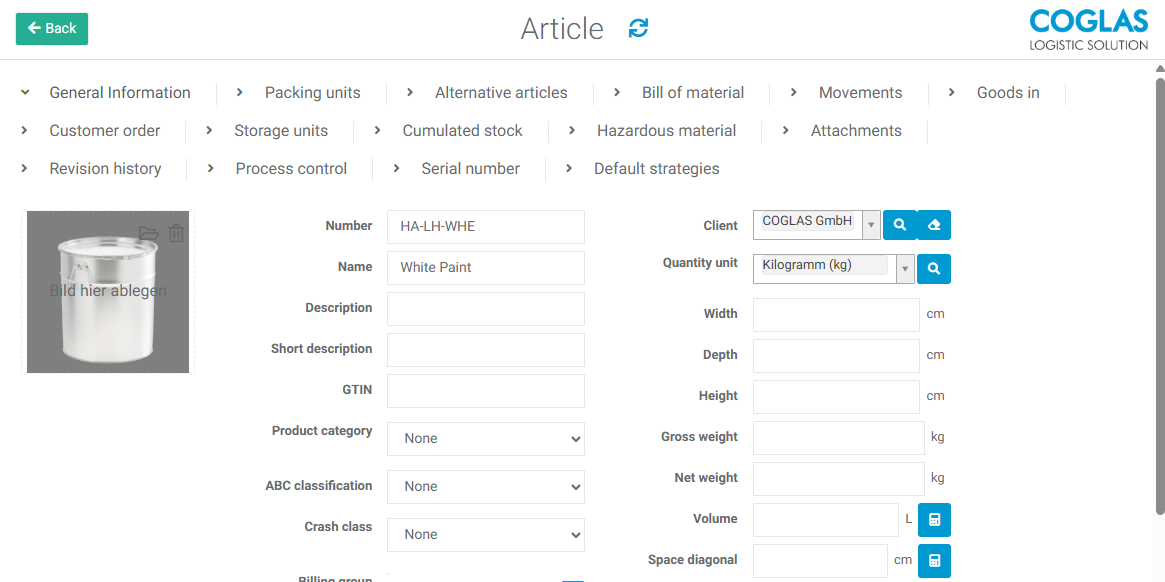
Articles master data can be manually entered or imported, see the chapter Interfaces › Import / Export. In addition to the unique assignment of the article to the client, there is the option to store an article photo, which is displayed during booking processes for illustration. The article images are saved in JPG format and compressed to a width of 1000px if they are larger.
Besides the basic data of the articles, such as article descriptions and morphological data (length/depth x width x height), process-relevant aspects can also be maintained.
General information
Here you can find the previously listed attributes for the selected article. Attributes can be changed at any time via the frontend or import/data interchange
The changes are applied upon saving.
An article label can be printed here.
|
Button |
Function |
|---|---|

|
Duplicate: This creates a new article dataset with attributes that have already been filled in. The number and client must be set for the newly created article and will not be copied. |

|
Edit: Enters edit mode. Either select 'Save/Cancel' or choose a different tab at the top of the page to exit. |
|
Required Fields |
Description |
|---|---|
|
Number |
The article must be assigned a unique ID. |
|
Name |
A unique article name must be assigned. |
|
Client |
Select a client from those you previously added under Business partners. To do this, you need to select the partner type "Client" in the "Add Business Partner" dialog box. |
|
Quantity Unit |
Select a unit of measure from those you previously added under Units. |
|
Optional Fields |
Description |
|---|---|
|
Article Image |
An article image can be added. The article images are stored in jpg format and compressed to a width of 1000px. |
|
Description |
Additonal article description |
|
Description (English) |
English description of the article. Relevant for possible customs processes, especially when connecting ShippingNET/Ondot. |
|
Short Description |
A detailed article description can be added. |
|
GTIN |
A Global Transaction Identification Number, a globally unique 14-digit number for identifying trade items, products, or services, can be added. |
|
Product Category |
can be selected if needed, product categories are added via System>Input Options. |
|
ABC Classification |
Choose from a catalog with values A-F for classifying articles into the respective categories. |
|
Crash Class |
Choose from a catalog with values "empty", 0, 1 to 11. The value 1 stands for heavy, 11 for light. The values "empty" and 0 are evaluated last, i.e., after light. Used for sorting in storage locations (see Strategies ) |
|
Billing good |
A billing group can be selected, which was previously stored under "Article Billing Groups". |
|
Article Billing Group (B&C) |
An Article Billing Group (B&C) can be selected, which was previously stored under "B&C Article Billing Groups". |
|
Bulk Material |
A yes/no value to determine whether it is bulk material or not. |
|
Hazardous Material |
A yes/no value for activation in the article tab "Hazardous Material". |
|
Serial Number Process Control |
A yes/no value for activation in the article tab "Serial number". |
|
Total Shelf Life |
The shelf life can be specified, in days. |
|
Max Best Before consolidation |
Sets the maximum period between the newest and oldest best before date during co-storage within a node (e.g., block) (remaining shelf life with the possibility of additional storage at the storage location). The configuration for co-storage can be made within the target setting of the strategies under "feature purity". |
|
Batch Required |
Batch requirement can be selected from the dropdown list. |
|
Manufacturing batch required |
Selection Yes/No/Not set Functionality see Batch. Additional stock qualification |
|
Package size required |
Select whether a package size is required as an inventory qualification. (The packaging size can also be used in the picking dialog. For more information, see zones in the warehouse overview.) |
|
Grade label required |
Selection Yes/No/Not set. Select whether a grade label is required. Can be stored via the input options. |
|
Special stock number required |
Whether a special stock number is necessary can be selected from the dropdown list. |
|
Special stock number 2 required |
Whether a second special stock number is necessary can be selected from the dropdown list. |
|
Default country of origin |
Catalogue selection via drop-down menu Values can be maintained via System → Input options. |
|
Country of origin required |
Selection Yes/No/Not set |
|
Storage location qualification required |
Selection Yes/No/Not set Functionality See quality indicator, maintenance of values via System → Input values |
|
Disallowed inventory corrections |
Defines whether and what inventory corrections are allowed. Selection values are increasing and decreasing the article stock. |
|
Goods value |
Value of the item with a maximum of 3 decimal places |
|
Goods value currency |
Currency of the value of goods |
|
Width |
The width of the article can be specified. |
|
Depth |
The depth of the article can be specified. |
|
Height |
The height of the article can be specified. |
|
Gross Weight |
The gross weight of the article can be specified. |
|
Net Weight |
The net weight of the article can be specified. |
|
Volume |
The volume of the article can be specified or calculated. |
|
Space diagonal |
The diagonal of the article can be specified or calculated. |
|
Nesting Factor |
For calculating the volume during picking or determining the appropriate packaging size, these are hollow bodies that can be stacked space-efficiently. |
|
Total shelf life warning |
Issues a warning if an article's shelf life approaches xx days. |
|
Best Before Date Required |
The obligation to specify the best before date can be selected from the dropdown list. |
|
eKanban |
Yes/No selection. If selected = YES, customer order positions for the respective article will not be considered during inventory reservation. The positions are in the status "eKanban" and are ignored during the status calculation of the list header. These are accounting positions that should only be processed through manual inventory allocation via picking and/or full pallet provisioning. |
|
Calculation of the Height of the Storage Unit |
A packing unit with the equipment type “LAGE” is required to use this function. |
|
Customs Tariff Code (ZTN) |
The Customs Tariff Number (HS-Code) of the article can be specified. |
|
Pharmacy Central Number (PZN) / Unique device identfication |
for pharamceutical requirements |
|
Customer material number |
Material number of the customer |
|
Supplier material number |
Material number of the supplier |
|
Duty article |
The registered customs item is also assigned to the customer order start, minimum stock replenishment and order-related replenishment, provided that there is no free stock for the actual item. |
|
Disabled |
Once created, items cannot be deleted. Deactivated items are not displayed in the selection for business processes. |
|
Shelf Lives |
Description |
|---|---|
|
Shelf Life |
Indicates the shelf life of an item in days. |
|
Shelf Life Pre-warning Time |
Issues a warning if an item approaches its shelf life in xx days. |
|
Max. Storage Time After Best Before Date |
Sets the maximum period between the newest and oldest best before date during co-storage within a node (e.g., block) (remaining shelf life with the possibility of additional storage at the storage location). The configuration for co-storage can be made within the target setting of the strategies under "feature purity." |
For the following attributes:
|
Best Before Date Required |
|
Batch Required |
|
Special Inventory Flag Necessary |
|
Special Inventory Flag 2 Necessary |
the following three inputs can be selected: Yes / No / not set; these have the following meanings:
|
Yes |
If "Yes" is selected as the value, the chosen attribute must be recorded for the respective article. |
|
No |
If "No" is selected, there must be no entry in the mentioned attribute. |
|
not set |
When the value is "not set," the batch, SBK, and SBK2 can be assigned a value. |
Assignment of a unique number
By entering "##" in the number field, you can assign the item a number automatically generated by COGLAS. By default, this number has the following format: AN000000, where "AN" stands for "Article Number" and the following digits represent the automatically generated number.
Customization through predefined number ranges
It is possible to create a separate number range for each client. This allows you to define an individual prefix and a start and end number.
Fallback
If no corresponding number range is defined for any client, the system falls back on the number range of the warehouse operator. If no number range exists there either, the standard prefix 'AN' is automatically used with the corresponding next number.
Input of morphological data
In the article master data the morphological data for the item can be set accordingly, at the General Information tab the data for the single piece/smallest unit moved in the warehouse should be used.
The packing units can be kept in their own section.
Translations
In the "Translations" tab, you can enter translations of the product description in various languages. Report templates of the "Goods out delivery note" type can then be generated with the corresponding translations.
Packing Units
The "Packing Units" menu in the article master data is used for container and capacity planning. An entry can be recorded for each equipment type. The “suitable for packing” option needs to be activated for each equipment type in the master data.
The packaging units are used in goods receipt and goods issue/packaging. In goods receipt, the packaging units are used for “automatic receipt”. The capacity calculation determines suitable containers from the packing units of the article from largest to smallest. (See Goods Receipt: "Automatic Receipt" uses the EURO pallet as standard if no packing unit is available). In goods out, the packaging units are used to determine the dimensions for the loading units. The stored morphological data from the article master is transferred if the loading equipment is also suitable for packaging (see Packaging: Packaging process with packaging units).
The packing unit's equipment type can be recorded and maintained with additional properties. If it is not described, the default values will be used.
The "Pencil" button opens the editing mode for packing units. A new entry can be created via the "Plus" button.
The meaning of each entry is as follows:
|
Entries |
Meaning |
|---|---|
|
This can be used to add an image of the packaging unit (e.g. a box or a full pallet) in addition to the article image. |
|
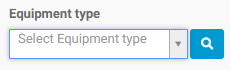
Selection of the Equipment type The equipment type is used for customer order packaging planning. The equipment type must have the property "Suitable for Packaging=active." For packaging planning, only activated "Article Master-Packing Units-Full Storage Unit" are considered. These equipment types are accounted for first in the packaging planning from the largest to the smallest entry. The remaining quantity is calculated according to the normal packaging planning. |
|
Quantity |
Maximum capacity of the packing unit with this equipment type. |
|
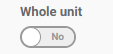
is suitable for automatic collection in goods in process |
Specifies whether this packaging unit can be used in goods receipt to create partial-unit receiving entries if no quantity per unit or loading unit is specified. Example: A delivery of 120 units on a EURO packaging unit contains 100 units; a goods receipt with this mode enabled creates EURO 1 with 100 units and EURO 2 with 20 units. |
|
Switch with On/Off values. |
|
Barcode |
If a packing unit uses a different barcode to the one on the individual item, this can be configured here. Each packing unit must have a unique barcode. |
|
Stacking Factor |
When storing in block storage, the stacking factor of the article is considered and the capacity of the block storage is adjusted. |
|
Width |
packing unit dimension |
|
Depth |
packing unit dimension |
|
Height |
packing unit dimension |
|
Article |
obsolete |
|
ABC Classification |
An article can be selected that describes the equipment type. An article master entry is required for this. |
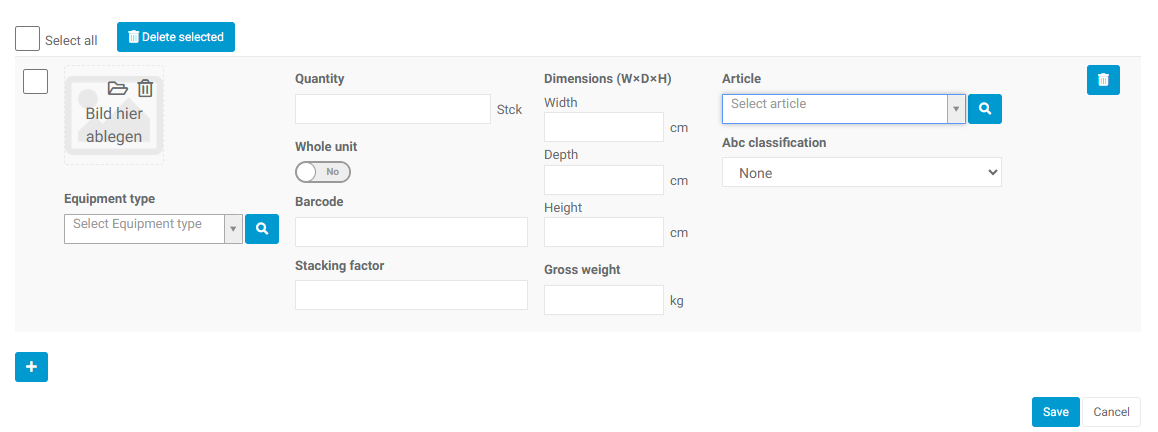
Through the "Save/Cancel" dialog, changes can be saved or discarded.
Alternative Items
If alternatives to the article are offered, they are listed here.
During demand planning, the requested item is first checked against the available quantity. If there is a shortage, the "alternative articles" list is checked in order from the top down, and if an item is available, it is reserved from the inventory there.
With the "Pencil" icon, one can manage already assigned alternative items:
-
Remove them (by pressing the "Trash" icon),
-
Change the already assigned item (by searching for a new item using the "Magnifying Glass"),
-
Or add another item ("Plus" icon).
The original article cannot be an alternative article itself.
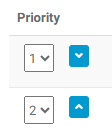
Alternative articles are selected according to their order (priority).
Priorities can be changed for more than one item by selecting the priorities or by moving the individual positions up and down.
Goods In data
In the tab Goods Receipt Data procurement data for orders can be maintained, which can later be triggered either via Bestellung or Mindestbestandsvorschau.
The following data can be stored:
|
Field |
Input |
Description |
|---|---|---|
|
Minimum stock level |
Numeric value |
Minimum stock for the item |
|
Supplier |
Selection |
Business partner of type Supplier from whom the item can be sourced |
|
Equipment type |
Selection |
Packaging that is ordered. For example, pallet. |
|
Order quantity |
Numeric value |
Typical order quantity of the item |
|
Delivery time |
Numeric value |
The usual delivery time in days |
Bill of material
Bill of materials allows the assignment of individual components to an article intended for production (during the manufacturing process, the required raw materials are transported to the production line in the specified quantity and booked out. In exchange, the goods to be produced are booked in the specified quantity).
In the created bill of materials, searches and filters can be applied, and displayed results can be sorted.
Using the "Add Bill of Material" button, a bill of materials can be added to the selected article. This involves recording the quantity for the chosen unit of measure and selecting the priority for the transport orders to be generated. Bills of materials can also be deactivated. The entire bill of materials for an article can also be deleted ("Trash" icon in the bill of materials header).
Subsequently, the articles necessary for production can be added by using "Add Position". This involves recording the necessary material/article and the required quantity.
Through the "Add/Cancel" dialog, the position can be added or the entry can be cancelled without saving. There is no limitation on the number of positions.
Already recorded positions are displayed.
And can be edited via the "Right Arrow" button or deleted via the "Trash" button.
Movements
Inventory movements related to the article can be viewed here, and they can be narrowed down through search and adjustable filters.
Goods in
The corresponding goods receipts for the article are listed here.
Customer order
The corresponding customer orders for the article are listed here.
Storage units
As described in the storage overview, the respective storage units for the article are listed here.
Cumulated Stock
The cumulated stock represents the total stock of the article.
All stock qualifications will be displayed (available, reserved, blocked,)
Hazardous material
While the classification of hazardous substances and goods has been standardized internationally by the Globally Harmonized System (GHS) and UN numbers, different regional regulations may apply to storage and transport.
In any case, please contact your COGLAS consultant.
If an article is a hazardous material, it can be marked as such using the "Hazardous Material" button. Further information can be found here:
The following hazardous material data can be added to the article:
|
Entry |
Description |
|---|---|
|
Storage Class |
Storage classes for hazardous substances are part of a classification system that serves to ensure the safe storage of various hazardous substances.Lagerklassen für Gefahrstoffe sind Teil eines Klassifizierungssystems, das dazu dient, die Lagerung verschiedener gefährlicher Stoffe sicher zu gestalten. |
|
UN Nr. |
The UN number is used to classify dangerous substances and goods intended for transport. Each substance or item is identified by a four-digit number. |
|
UN sub-numbers |
In addition, there are the so-called UN sub-numbers, which are used in some cases to provide specific information about a particular type of substance within a main category. |
|
Hazardous material weight |
|
|
Hazardous material volume |
|
|
limited quantity |
LQ mass |
|
Aggregate state |
Liquid / solid / none |
|
Warning plate number
|
The hazard number, also known as the Kemler number, is a two- or three-digit number displayed on orange warning signs on vehicles transporting dangerous goods. |
|
Tunnel code |
The tunnel code is an additional code that is displayed on the same warning plate as the hazard number and is specifically relevant for transport through tunnels. |
|
Text |
|
|
Not elsewhere classified
|
This means that the substance or article is not specifically listed in the regulations but still falls under a general category of dangerous goods. |
|
Packing group
|
The packaging group indicates the degree of danger of a substance within its class. |
|
Class |
Dangerous goods class to be selected from the list. |
|
Classification code
|
The classification code is a specific identifier used to describe the exact nature of the hazard posed by a dangerous good. |
|
Wrap text |
free text field |
|
water hazard class |
Can be distinguished between Unknown, 1, 2, and 3 |
|
Environmentally hazardous substance |
Checkbox can be selected if the substance is hazardous to the environment. |
|
Extinguishing agents |
Extinguishing agents to be used in the event of a fire |
|
Primary risk |
free text field |
|
First subsidiary risk |
free text field |
|
Second subsidiary risk |
free text field |
|
Third subsidiary risk |
free text field |
|
Transport category |
Can distinguish between 0 and 4 |
|
Excepted quantity |
Can be differentiated between E0-E5 |
Attachments
File attachments that have been associated with the article are listed here (these can be images or files such as .PDF).
Revision history
This tab lists all changes made to the master data for the article.
Process control
Article Area Code
The Article Area Code can divide articles into different storage areas. A classic example here is the separation of goods requiring refrigeration into a cooling area.
For this purpose, Article Area Codes can be added in the zone values and assigned to the respective articles.
Is packing provision
If the article is a provision item, the "Is Provision" checkbox can be checked.
Excess quantities
If picking of excess quantities is to be allowed in the picking process, this can be controlled here by checking the box. This must be set individually for each article. If excess quantities are to be allowed in the staging outbound, the percentage value can be maintained in the source strategy.
Notes
If text is added for the following processes, it will be displayed with the respective article beforehand:
-
Goods Receipt Notes
-
Picking Notes
-
Transport Notes
-
Packaging Notes
-
Loading Notes
Goods in over delivery limit ratio
Here you can specify the percentage by which the goods receipt can be overbooked in comparison to the delivery note. If the value 0% is entered, the goods receipt cannot overbook the delivery note. Otherwise, any percentage value can be entered here. If the field is left blank, overbooking is possible without limitation.
Picking planning equipment types
If only certain equipment types should be considered for the picking planning of the article, they can be selected here.
Default strategies
The selected article can be booked by default with a specific strategy in the processes of goods receipt, returns, production, or goods dispatch. The value stored can be individually changed at the respective process position to be booked with a different strategy.
|
Default strategies |
Description |
|---|---|
|
Default goods in strategy |
Selection of a goods-in strategy |
|
Default production strategy |
Selection of a production strategy |
|
Default production supply strategy |
Selection of a production supply strategy |
|
Default customer order strategy |
Selection of a customer order strategy |
|
Default internal order strategy |
Selection of a internal order strategy |
|
Default rebooking order strategy |
Selection of a ebooking order strategy |
|
Default replenishment by order demand strategy |
Selection of a replenishment by order demand strategy |
|
Default replenishment by reorder level strategy |
Selection of a replenishment by reorder level strategy |
|
Default return strategy |
Selection of a return strategy |
Seriel number
Further information on the configuration of serial numbers can be found here: Seriel numbers
Inventory Transformation
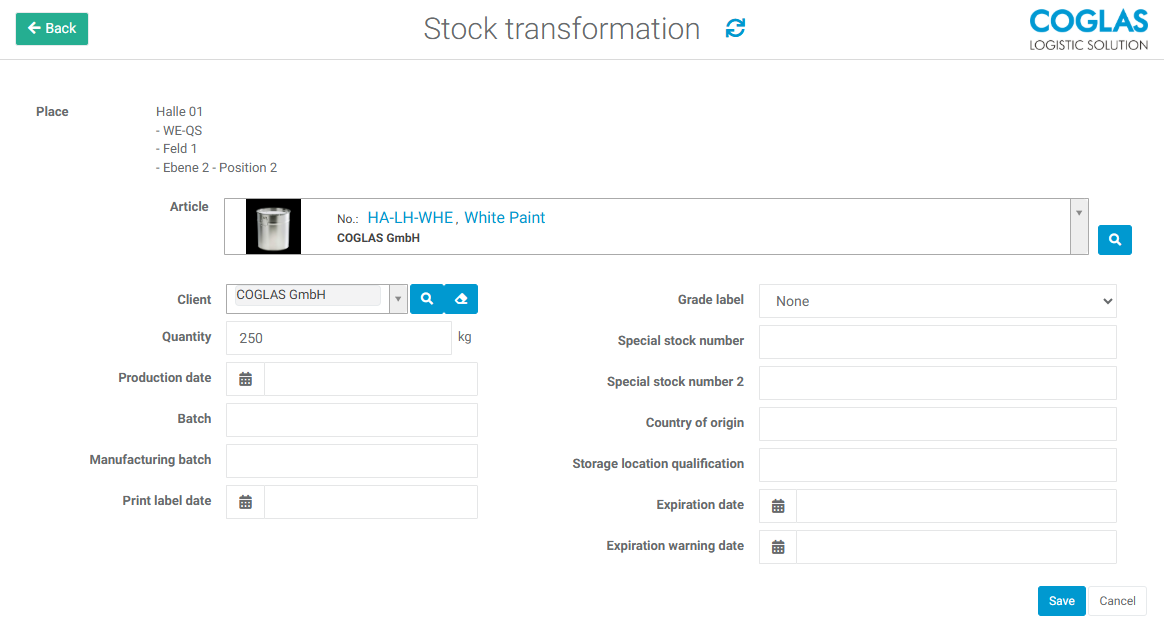
With the inventory transformation, the user has the ability to change all fields of the inventory details. The existing NVE/SSCC does not need to be changed. Data such as the article and quantity can be adjusted. However, the storage location cannot be changed. The inventory transformation differs in the option to adjust the article and the quantity.
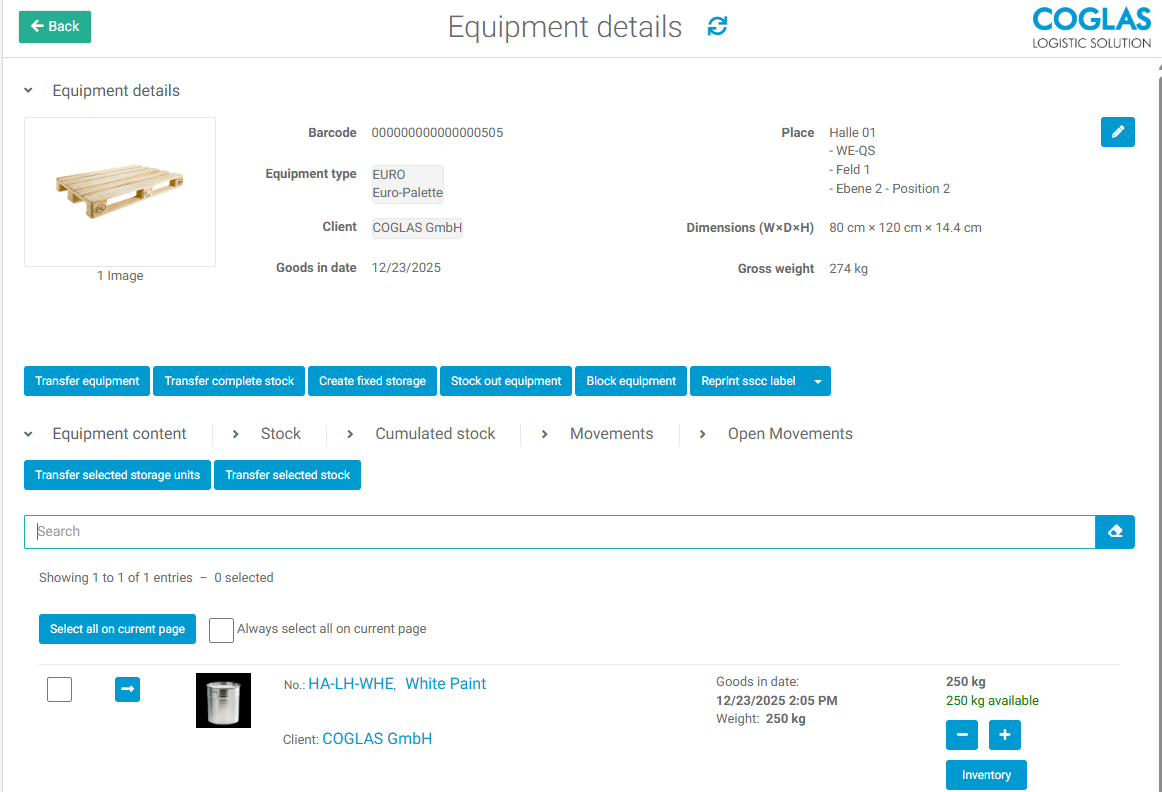
The storage unit can be selected in the warehouse overview or the storage units tab in the article master data.
Functionality
Select the corresponding storage Unit->Click on the storage unit number to view it's details.
Clicking on the arrow symbol next to the relevant stock will show it's details. The button “Stock transformation” will appear.
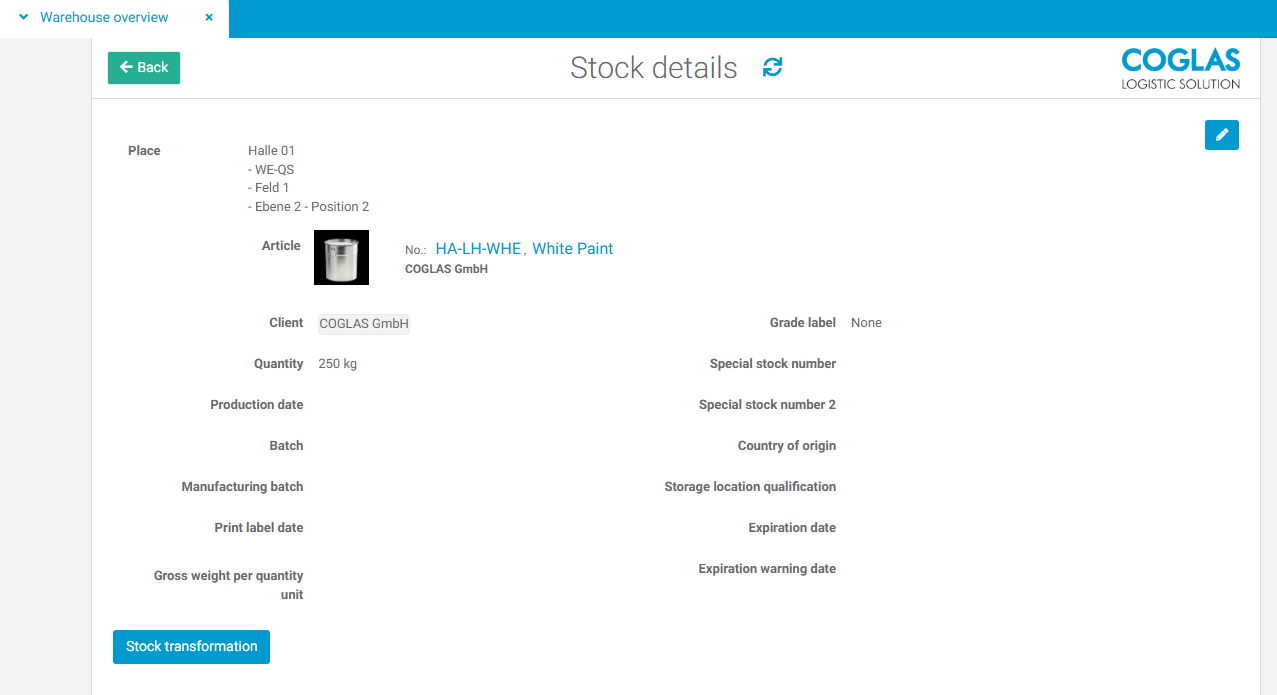
After selecting Stock transformation all details and qualifications will become editable
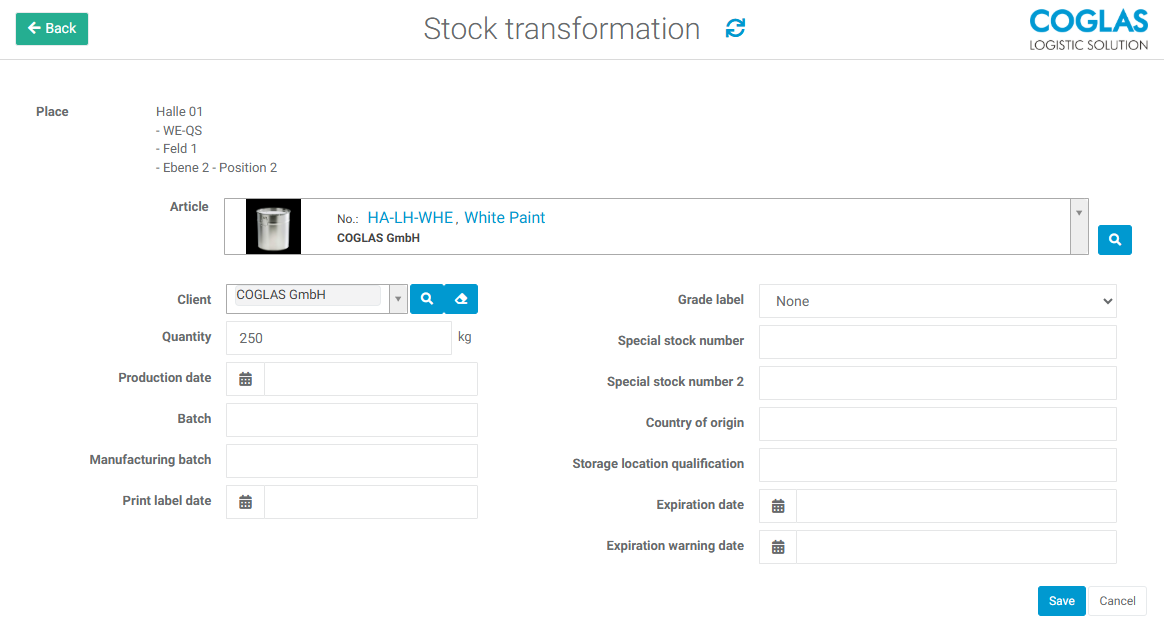
The new details will be applied after saving.
Setup - stock transformation article list
Setting up the function is not necessary. However, there is the option to define the inventory transformation article list.
For this client option three selections are possible:
|
Selection |
Description |
|---|---|
|
Alternative Articles |
The stocktransformation function reduces the selection of item numbers based on the alternative articles set for the original article. |
|
bill of material list |
The stocktransformation function reduces the selection of item numbers based on the bill of materials articles set for the source item. |
|
product category |
The inventory transformation function reduces the selection of article numbers that have the same article product category set in the source item. |
Input of data
|
Warning notices |
Description |
|---|---|
|
Form validation failed. Please, check the data entered |
Not all mandatory fields have been filled in; see also fields marked in red. |
→ back to COGLAS processes
→ back to COGLAS menu