
General
Items can be blocked in block lists. A differentiation is made between different blocking kinds. Stock included in block lists are not available for order reservations. A block list always contains a kind and reason and, optionally, a description and remark. The block list number is generated automatically by the system.
Predefined blocking reasons:
-
Stock expired
-
Stock damaged
-
Warehouse damaged
-
Quantity variance
-
Inspection necessary
-
Quality assurance
Alternatively, individual reasons for blocking can be entered using the input values.
Blacklists can be deactivated if they lose their validity. It is not possible to delete a blacklist.
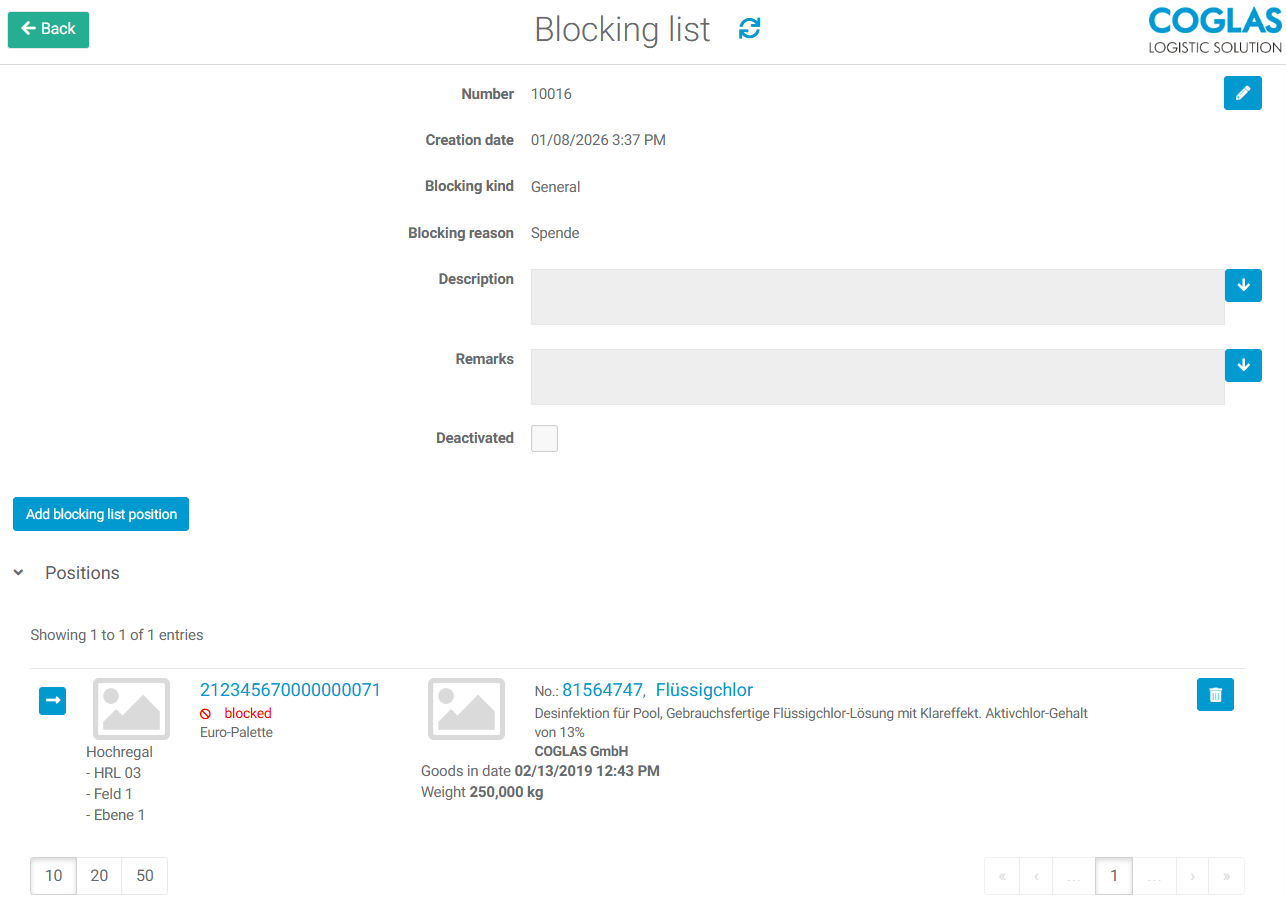
Blocking kinds
For all blocking kinds, the storage units included in the block lists are displayed as blocked and are also transmitted accordingly via interfaces.
General
If the block kind "General" is selected in the blocking list, all items contained in the block lists can no longer be moved in the warehouse or assigned to orders. This applies to all processes.
Goods in
In the blocking lists of the block kind "Goods in", items can be blocked that are still in delivery or have already been received.
If storage units are blocked (with this blocking kind) that already have a transport order or are already in process, are routed to the storage location with the system zone ‘Clarification inventory’. If this zone does not exist, the transport cannot be completed and the employee can leave the process.
Goods out
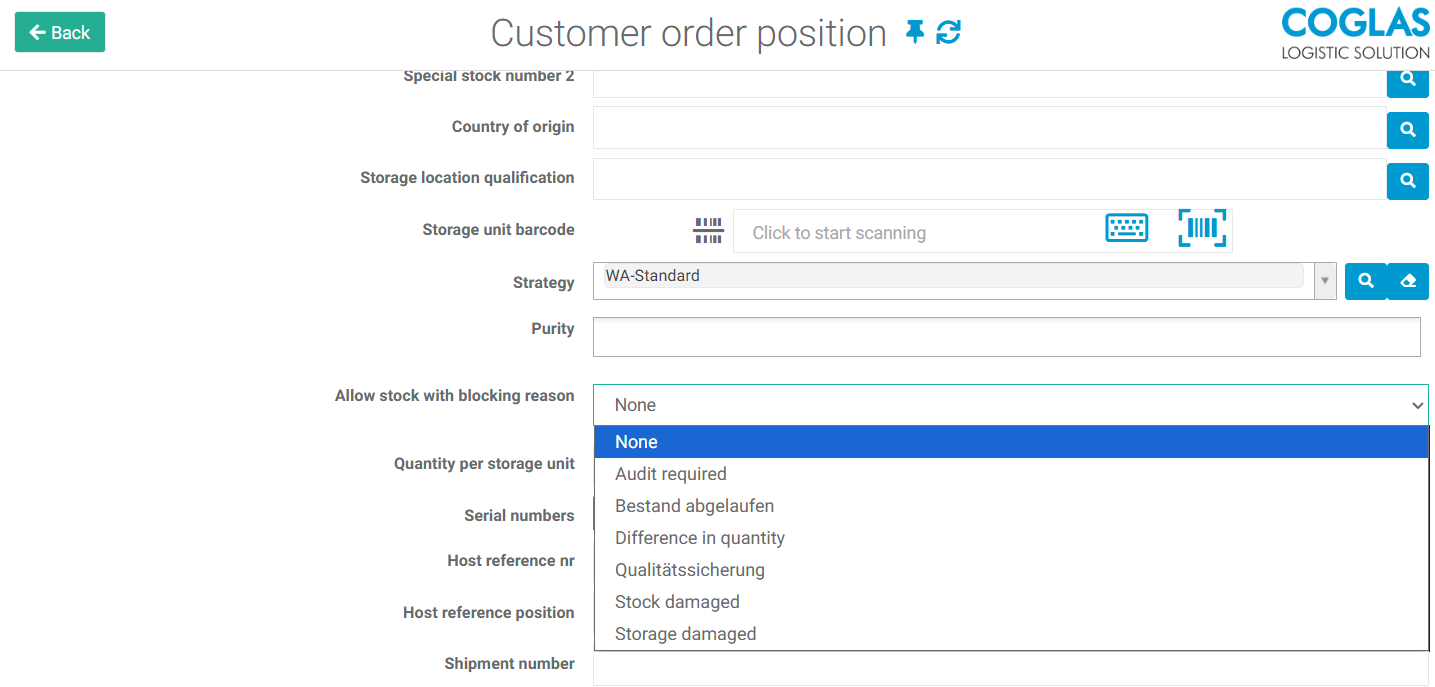
With the "Goods out" blocking kind, the blocking list items can still be moved within the warehouse, including by internal orders. Only reservations for customer orders are not possible, unless the same blocking reason as specified in the blocking list is entered in the "Allow stock with blocking reason" field in the customer order position.
If storage units are blocked (with this blocking kind) that already have a transport order or are already in process, are routed to the storage location with the system zone ‘Clarification inventory’. If this zone does not exist, the transport cannot be completed and the employee can leave the process.
Blocking list positions
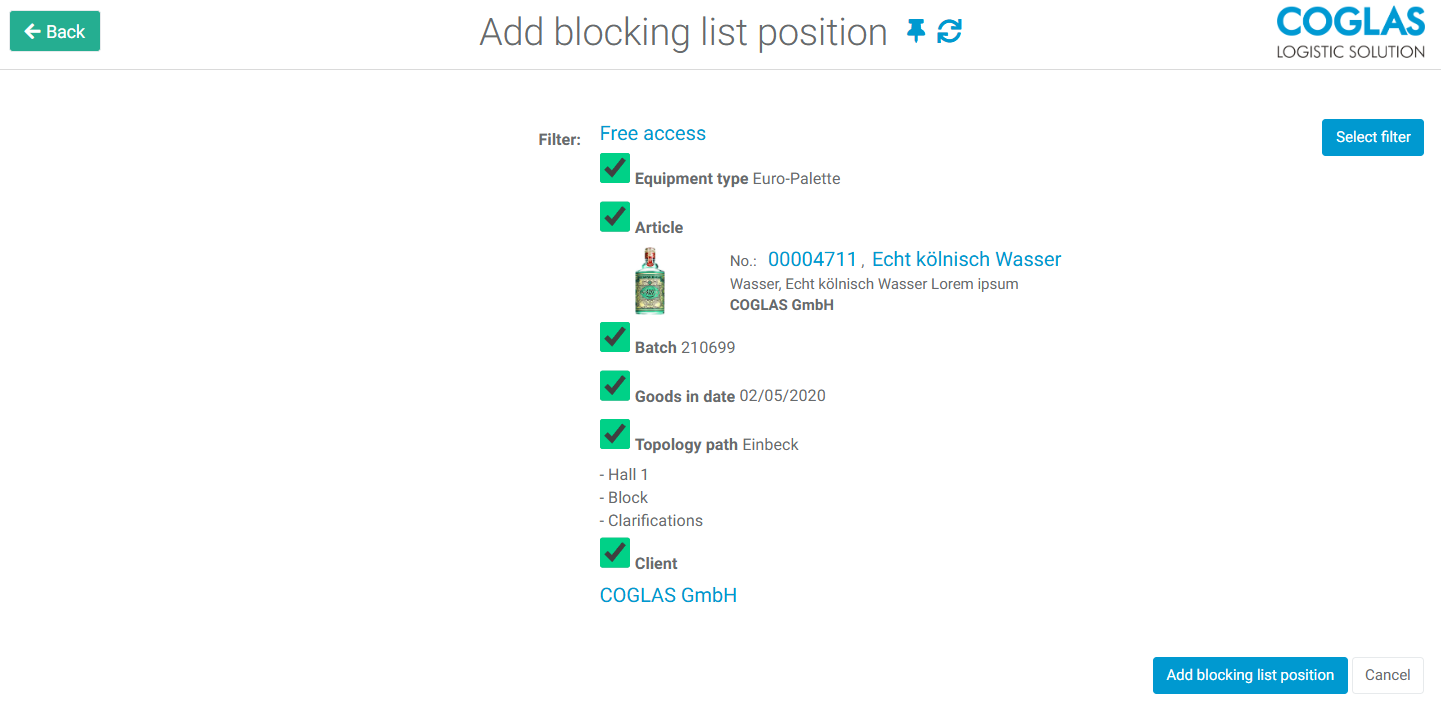
Blocking list positions can be added in different ways. The positions are added automatically through inventory orders. Block list positions can be added manually by clicking on “Add blocking list position”.
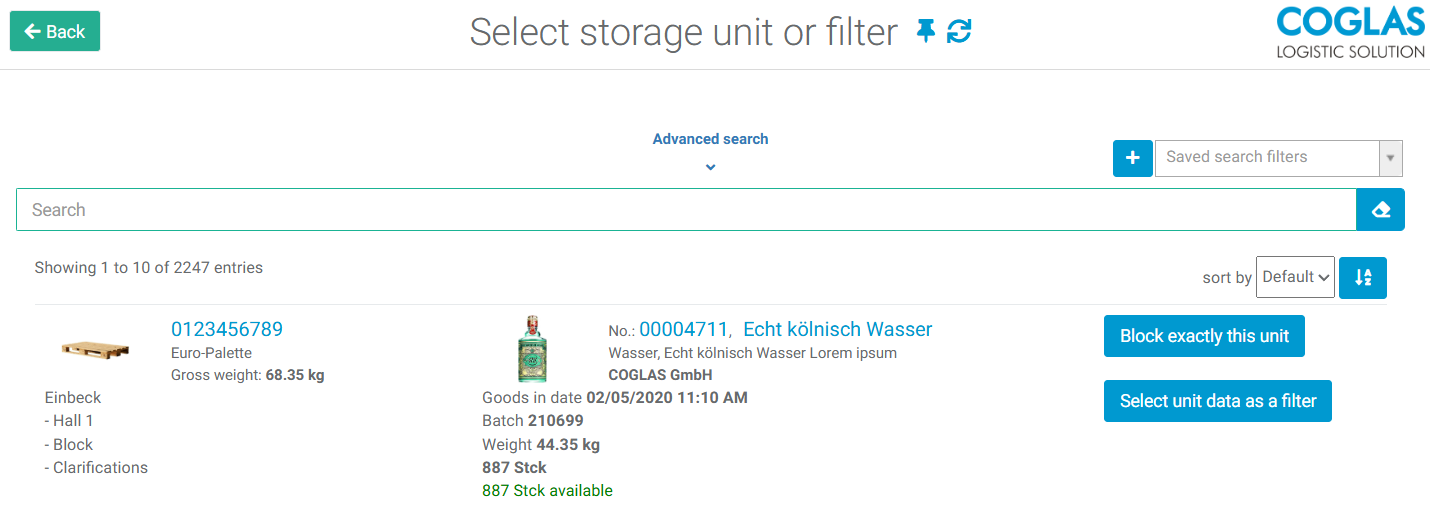
Specific storage units can be selected using the search function. The "Block exactly this unit" button blocks only the selected storage unit. The "Select unit data as a filter" button allows you to block multiple storage units. The storage units to be blocked can be restricted, for example, to the articlenumber or other inventory qualifications.
→ back to COGLAS processes
→ back to COGLAS menu