
General
The Event Center can be used to control cyclical or event-related process executions in COGLAS. Execution is based on a simple IF (trigger) THEN (action) rule.
Any number of events can be set up. If an event is no longer required, it can be deactivated.
Training Event Center on 22 January 2026
COGLAS offers free monthly customer training sessions. This video is in German and has automatically generated subtitles in several languages.
Access
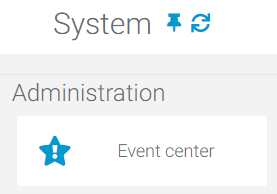
The Event Center can be accessed under System->Administration->Event Center.
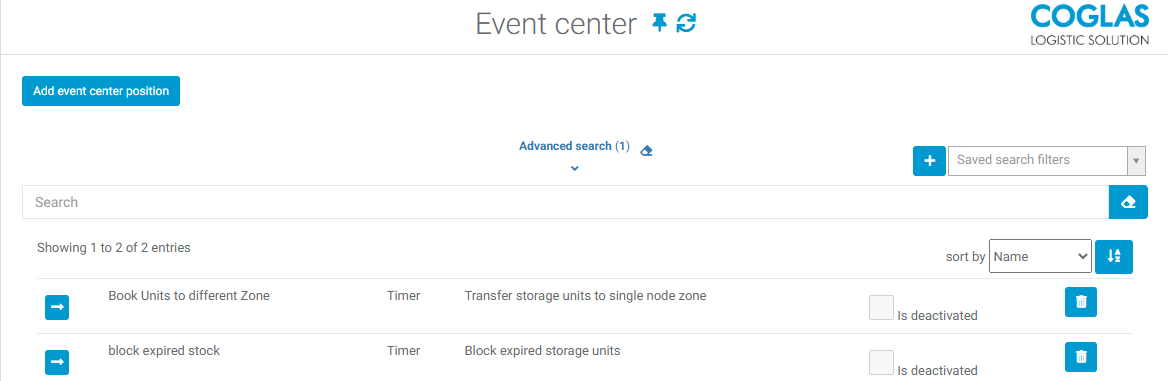
When you open the menu, you will see an overview of all the events that have already been created, as well as an option to create new ones via the 'Add event centre position' button.
Input Options
All input options are described in detail in tables. Mandatory fields, optional fields and buttons are explained in separate tables.
Event header
The header of the event is used to name and describe the event. The event can also be activated or deactivated via the header.
|
Field |
Description |
|---|---|
|
Name |
name of the event |
|
Description |
brief description of what the event does |
|
Is deactivated |
checkbox to (de-)activate an event |
Trigger
Following triggers are available
|
Trigger |
Conditions |
Description |
|---|---|---|
|
Topology stock changes |
|
An action can be triggered when the set conditions are met. |
|
Storage unit movement |
|
The trigger is the movement of a storage unit to a specific topology node or storage area code. |
|
Status changes |
Entity types:
|
Triggers an event by a status change. For example: customer order ready for loading. |
|
Timer |
|
Trigger control based on time. |
|
Storage unit nesting |
|
Trigger when a nesting has been performed according to corresponding conditions with a strategy. |
Action
following actions are available
|
Action |
Action parameter |
Description / additional information |
Use case |
|
|---|---|---|---|---|
|
1 |
Block expired storage units |
|
Remarks allows to add custom text that will be set by the event Expiration warning date will use the set timeframe in the article general information → total shelf life warning |
Block expired or total shelf life threshold units. |
|
2 |
Calloff lists |
none |
|
Call off lists through the setup data interface (e.g. customer orders from the ERP). |
|
3 |
Generate and set client barcode and print storage unit |
|
Enables automatic printing of documents for nested storage units |
|
|
4 |
Completion of open production orders |
Max production orders to set done
|
limits the amount of production orders per interval |
sets the status on open production orders to done |
|
5 |
Create and start collective orders |
|
|
Used to combine and start single customer orders to collective orders with set parameters.
|
|
6 |
Create relocation of stocks |
|
|
relocation of storage units via interal orders when the conditions set as parameters are met. |
|
7 |
Change stock qualifications |
|
The storage unit ID must be set as the trigger parameter mapping with Current.Id. |
Automatic setting of stock qualifications, e.g. when they are transferred to a specific storage area. |
|
8 |
Delete customer order business partner data |
|
|
Deletes the business partner data from the customer order header. |
|
9 |
Pack storage unit |
|
"ID" must be set as the trigger parameter so that the system can initiate the action based on it. It is also possible to package storage units with serial numbers here. |
|
|
10 |
|
|
|
|
|
11 |
Register goods in receipts |
|
|
Register goods in receipts automatically. |
|
12 |
Register goods out receipts |
|
|
Register goods out receipts automatically. |
|
13 |
Send current stock summaries to service url |
|
|
|
|
14 |
Send customer order reports by mail |
|
|
|
|
15 |
Send delivery note reports by mail |
|
|
|
|
16 |
Send email |
|
|
|
|
17 |
Send entity report by mail |
|
|
|
|
18 |
Send goods in order reports by mail |
|
|
|
|
19 |
Send goods in receipt reports by mail |
|
|
|
|
20 |
Send goods out receipt reports by mail |
|
|
|
|
21 |
Send goods out reports by mail |
|
|
|
|
22 |
Send reports by mail |
|
possible reports:
|
|
|
23 |
Send stock sum to ERP |
|
|
|
|
24 |
Start collective orders |
|
|
additional event to separate from the event: Create and start collective orders |
|
25 |
Start customer orders |
|
|
|
|
26 |
Start hauling |
-/- |
|
automatically start the hauling process |
|
27 |
Start loading customer orders and register goods out receipt |
|
|
Starts the loading process automatically according to set parameters and registers the goods out receipt |
|
28 |
Transfer storage units |
|
The storage unit ID must be set as the trigger parameter mapping with Current.Id. |
Automatic transfer booking of storage units based on the strategy. |
|
29 |
Transfer storage units to single node zone |
|
|
automatically moves storage units from zone A to zone B |
|
30 |
Update customer order process control properties |
|
|
Changes the options in the Process Control tab in the header data of customer orders |
FAQ
|
Situation |
Ursache Lösung |
|
|---|---|---|
|
1 |
My event is not being executed. Trigger = Topology stock changes |
The event trigger “Topology stock changes” has requirements that must be checked.
|
|
2 |
The event was executed, but I did not receive an email. |
For events where a report is sent, a subject line must be provided. |
→ back to COGLAS processes
→ back to COGLAS menu