
General
With the COGLAS WEB WMS, data is exchanged bidirectionally via a data interface to any IT system. The outgoing data interface of COGLAS can be set up in push or pull mode. Push – COGLAS sends data as soon as they are available. Pull – The customer creates a WEB API direct query and receives the data message. We have already connected ERP systems (Enterprise Resource Planning), WM systems (Warehouse Management System), BDE systems (Production Data Acquisition), TMS (Transport Management System), PPS systems (Production Planning and Control), CEP service providers (Courier Express Package), forwarding agencies, web shops and FIBU (Financial Accounting).
COGLAS provides the customer with standard WEB-API’s, which can be called in JSON format. If your IT system cannot call our JSON standard interfaces directly, there is the possibility to transfer the data in XML format, XLSX format, JSON format or CSV files to the COGLAS WEB WMS. The import and export of Excel files is also possible without any problems.
In case you do not call our standard interfaces in JSON format, we use our own interface application. This is responsible for receiving and converting the data (e.g. XML, XLSX, CSV). We can install the interface application locally on your premises, on any server or in our cloud. The aim of the COGLAS data interface application is to connect external data interfaces to our COGLAS WEB WMS in a simple and uncomplicated way.
The interface application consists of an adapter and converter. The adapter is responsible for receiving and sending data. It establishes the connection between other IT systems and the interface application. For example, the adapter can unpack the sent files, establish access to your database (e.g. MS-SQL) or establish a connection to another WEB-API, etc. The converter transforms the received data and sends it to the interface application. The converter transforms the received files into our standard JSON format and message types and takes over the mapping (transmission of the correct data).
The connection with the formats JSON and XML can be applied to the COGLAS standard message types immediately. The connection to the formats CSV and XLSX requires an individual mapping. The connection to an SAP system for IDOC structures is also possible without any problems.
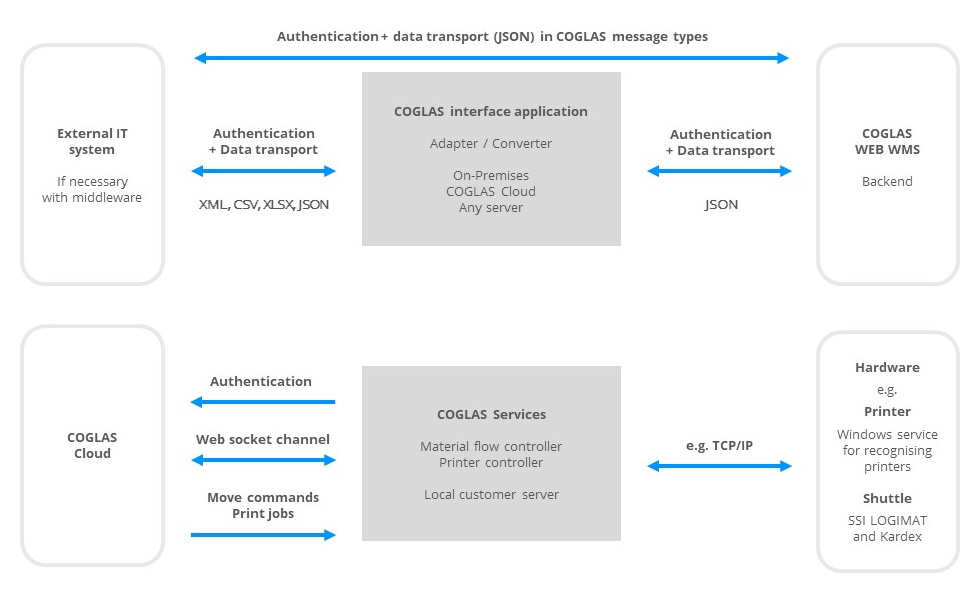
With the COGLAS WEB WMS we can send and receive data, we can poll or send data on a specific event (e.g. on status, time interval).
What do you need for authentication between your IT system and the COGLAS WEB WMS backend?
-
Specify URL and warehouse name
-
username* (string): Warehouse alias and user name in the form “warehouse/user name”.
-
password* (string): Password of the user
What do we need for authentication to use the interface application?
|
Scenario |
Description |
Further information |
|---|---|---|
|
Interface application is located locally on a server at the customer’s site |
Client puts files in a directory, we read from the directory regularly. No authentication is necessary |
Client must set up server and perform maintenance. IIS must be installed. Remote maintenance access for COGLAS necessary. Mapping must be carried out for CSV and XLSX. |
|
Interface application resides in the Open Telecom Cloud |
Via API key in the form of customer password via HTTPS |
No remote maintenance access necessary for COGLAS. Customer does not need a server. Customer must send the data. |
|
Interface application is located on any server |
By means of SFTP or HTTPS. Authentication takes place in both directions with a password, i.e. in the direction of the IT system and COGLAS WEB WMS. |
|
|
SFTP (local at the customer’s site, cloud or on an external server) |
FTP server regulates access data |
|
|
Access from COGLAS WEB WMS to an external IT system |
We need the access data from the customer |
|
Also for your project we will find together an optimal solution for the communication between your IT system and our COGLAS WEB WMS.
To ensure that long numerical values (e.g. NVE / SSCC numbers) are transferred correctly when opening CSV files with Excel, the data must be imported as text.
|
Type |
Description |
|---|---|
|
Article |
For the transfer of article master data to the COGLAS Web WMS one of the following data structures can be used: Download |
|
Business partner |
An overview of the possible business partner categories for the “PartnerType” field can be found under Master data → Business partner. The English designations are to be used. The following data structure can be used to transfer business partners to COGLAS Web WMS: Download |
|
Orders |
For the transmission of orders to the COGLAS Web WMS one of the following data structures can be used: Download |
|
Delivery orders |
For transmission of delivery bills to the COGLAS Web WMS one of the following data structures can be used: Download Furthermore it is possible to transfer delivery bills via WMTORD from SAP to COGLAS using a SOAP 1.1 interface. |
|
Customer orders |
For the transmission of customer orders to the COGLAS Web WMS one of the following data structures can be used: Download Furthermore it is possible to transmit customer orders to COGLAS via a WMTORD using SOAP 1.1 interface. Tour data can be transferred to COGLAS as an update to the customer order header from an external planning system. The message type ShippingTour is used for this purpose. |
|
Production orders |
The following data structure can be used to transfer production orders to the COGLAS Web WMS: Download |
|
Production receipts |
The following data structure can be used to transfer production inputs to the COGLAS Web WMS: Download |
DHL Package
COGLAS Web WMS provides a direct interface to the DHL Paket product. This can be used to create the required shipping labels (also called shipping labels) for outgoing shipments in the course of packaging.
The generated shipping labels are created in the packing process and can be printed directly from the browser on any printer.
For test purposes, a so-called sandbox operation is possible in order to be able to generate sample labels.
-
DHL Package-business-customer
A business customer account with DHL Paket is required to use the service. You can find more information here.
-
Configuration
-
Select: If the DHL package option is enabled, DHL package can be selected in the of the. The available partners with defined interfaces are displayed in a selection box as soon as “Carrier” is selected as partner type.
-
Store access data: For productive operation, the access data of the DHL account to be used must be stored in the master data of the business partners. In multi-client operation, a separate account can be assigned to each client.
The DHL Business Customer Portal Access Data button can be used to enter the user, signature and EKP. As soon as the service is to be used with relevant data, the Productive operation checkbox must be activated.
-
Generate shipping labels
If DHL Paket was used as the carrier for the customer order, the shipping labels can be generated in the packaging or goods out.
The reference number is limited to 35 digits and should not be exceeded. Excerpt DHL:
|
ShipmentOrder. Shipment. ShipmentDetails. |
String |
Description |
|---|---|---|
|
customerReference |
maxLength: 35 |
A reference number that the client can assign for better association purposes. Appears on shipment label. To use the reference number for tracking purposes, it should be at least 8 characters long and unique. |
GLS
To use the interface, you need a GLS customer account.
The access data for the GLS customer account must be stored in COGLAS in the carrier's master data via the Carrier Access Data button.
The data required for this:
-
API key
-
API secret
-
Authentication URL
-
Shipment URL
-
Shipper ContactID
can be found in your GLS customer account or obtained from customer service.
Shipment data can then be transmitted directly from COGLAS and shipping labels can be printed from the process.
Shipcloud
Shipping labels (also called shipping marks) can be created for the common CEP service providers via the service provider Shipcloud.
Shipcloud offers its own web portal independent of the COGLAS Web WMS. Here you can use e.g. the shipping labels generated so far can be managed or the costs incurred can be viewed.
Shipcloud assigns an ID / API key to each account. COGLAS needs this key to enable a connection to the COGLAS Web WMS.
-
Shipcloud-account
A paid Shipcloud account is required for regular use of the service. -
Configuration
Once the shipcloud account is configured, the CEP service providers can be selected in the business partner master data. The available partners are displayed in a selection box as soon as ” Carrier ” is selected as the partner type. -
Generate shipping labels
If one of the shipcloud service providers was used as the carrier for the customer order, the shipping labels can be generated in the packaging or goods out.
Sendcloud
The service provider Sendcloud can be used to create shipping labels for the most common CEP service providers. UPS and DPD are enabled by default.
Sendcloud offers its own web portal independent of the COGLAS Web WMS. Here, the shipping labels created so far can be managed (e.g. canceled) or the costs incurred can be viewed.
The customer must enter into their own contracts in order for these to be implemented.
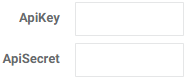
Sendcloud assigns an API Key and API Secret to each account. COGLAS needs this key to enable a connection to the COGLAS Web WMS.
Functionality
|
Button |
Beschreibung |
|---|---|
|
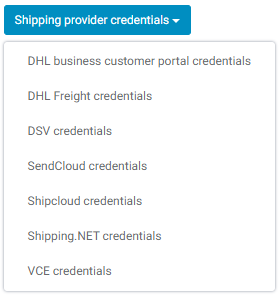
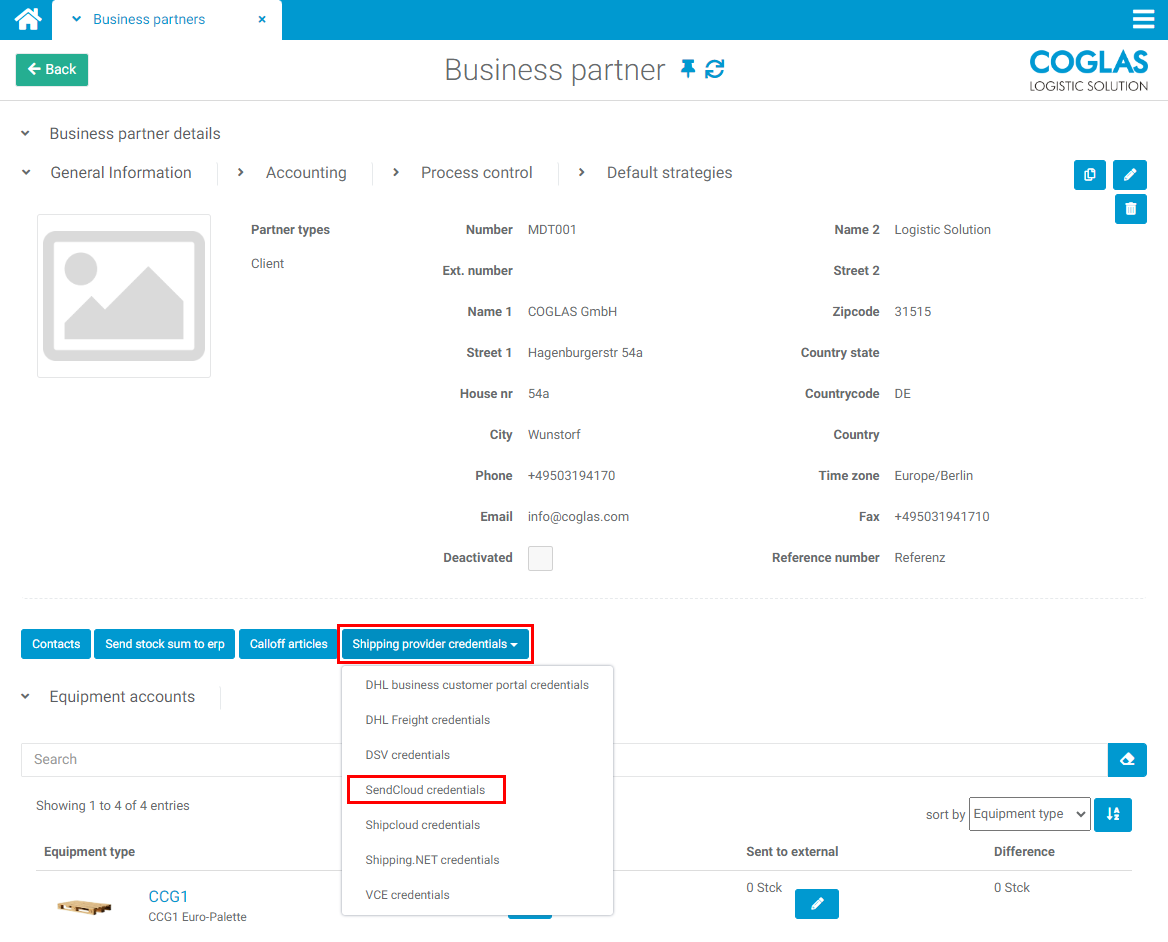
If the business partner is stored as a client, the SendCloud APIs can be stored under the login data. |
|
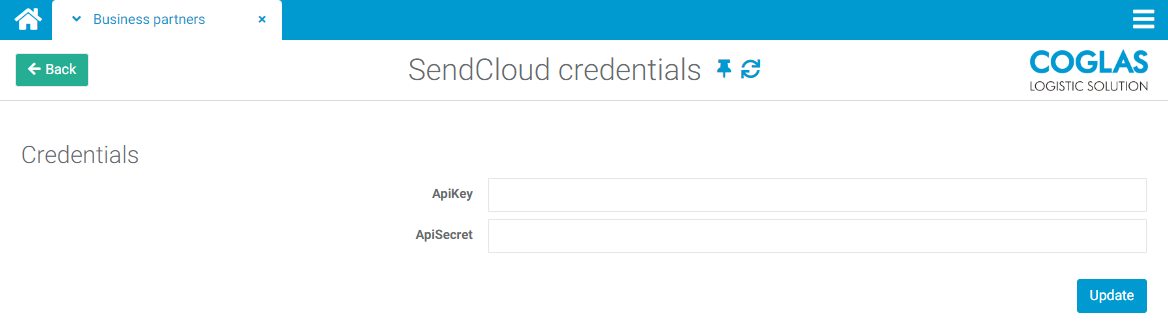
The SendCloud APIs are entered in the login data. The APIs can be found under the respective individual SendCloud accounts. |

|
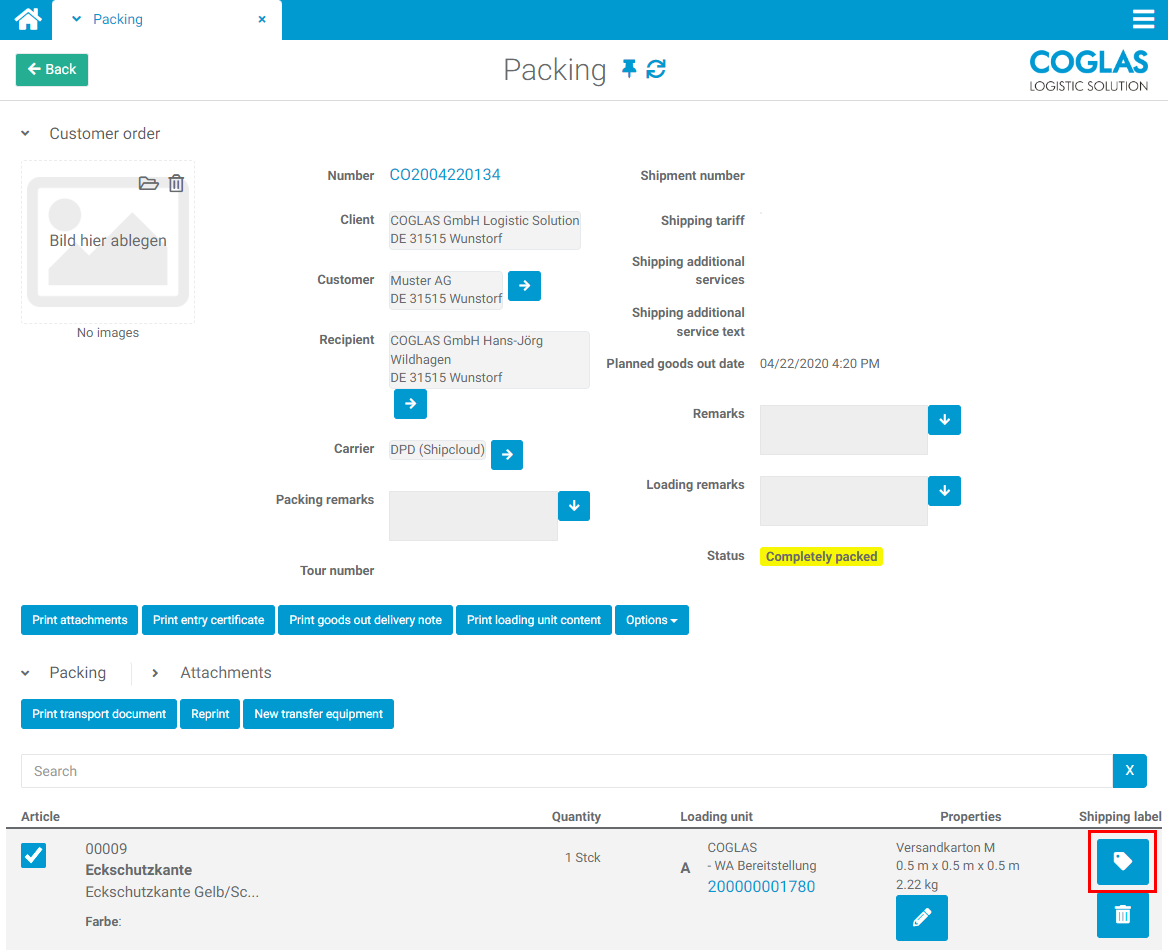
When a customer order has been picked and packed, the shipping labels are generated. |
|
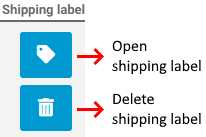
The shipping can be either called up ( green) or deleted (canceled) (red) via the marked buttons. |
Facilities
A Sendcloud account is required for regular use of the service. Create an integration in the Sendcloud account (menu Integration → Sendcloud API). For an integration a name must be assigned, this should also be meaningful to the recipients
COGLAS must first activate Sendcloud in the WMS before this function can be used.
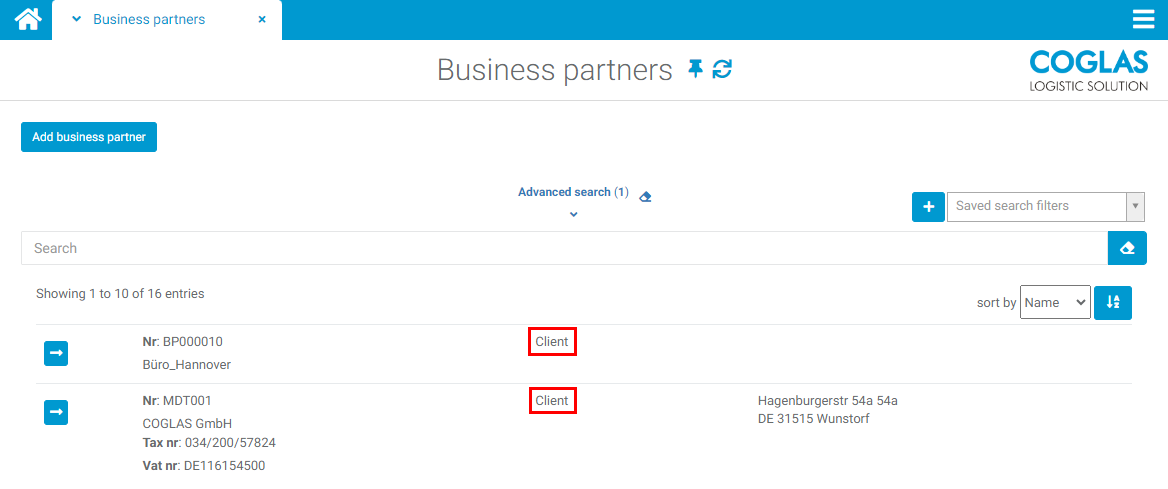
After that the API Key and API Secret must be entered to enable the connection to the COGLAS WEB WMS. These APIs are stored in the respective business partners. The business partner must have the partner category “Client”.
After that the APIs can be entered in the following menu:
Once the Sendcloud account is configured in COGLAS, the CEP service providers can be selected in the business partner master data. The available partners are displayed in a selection box as soon as ” Carrier ” is selected as the partner type.
If one of the Sendcloud service providers was used as the carrier for the customer order, the shipping labels can be generated in the packaging:
Package dimensions are not transmitted to Sendcloud. The transfer of the weight from COGLAS to Sendcloud is done via interface to determine the shipping method. Reprint: In the COGLAS packaging menu, created shipping labels can be reprinted at any time (as long as the Sendcloud server allows it).
Cancellation of shipping labels (optional) can be done directly in the COGLAS packaging menu or alternatively via shipcloud.de. (How to cancel an order?)

DACHSER
Requirements
The access data for DACHSER must be stored for the business partner. In addition, the business partner DACHSER must be of the type “Freight forwarder.” The following items must be stored in Coglas:
-
API base url
-
API key
-
(optional) Test API key → for testing only
-
Forwarder ID (ID for DACHSER-Branch)
-
Consignor ID (Customer number)
-
Loading aids (mapping based on DACHSER)
-
Shipping rates (product code from DACHSER)
-
Incoterms (mapping based on DACHSER)
-
Additional services (e.g., fixed date, express, notification, pallet exchange)
The mapping information and other details, such as the forwarder ID, can be downloaded as a code list directly from DACHSER (API Portal).
Process
At the packaging or goods out reciept process, either the SSCC and labels from COGLAS can be used and printed, or those from the carrier. This can be set at the carrier.
To finally transfer the data, the shipment must be manifested in goods issue. This is done using the corresponding button. Manifestation sets the transfer date in goods issue. Manifestation can also be carried out via the Event Center.
The carrier must already be maintained in the customer order so that the manifest can be created. If it is not maintained, an error message will appear: At least one storage unit is not in the Schenker shipment, i.e., “(storage unit no.)”
DB Schenker
Requirements
The access data for Schenker must be stored for the business partner. In addition, the business partner Schenker must be of the type “Freight forwarder.” The following items must be stored in Coglas:
-
Access key for Schenker interface (you can obtain this directly from Schenker)
-
(optional) Schenker user group ID
-
(optional) Schenker user ID
-
Loading aids (mapping based on Schenker)
-
Shipping rates (product code from Schenker)
-
Incoterms (if different from Incoterms 2010 in the customer order)
-
Store the Schenker label as a report template in COGLAS.
-
Additional services (e.g., fixed date, express, notification, pallet exchange)
The following shipping rates are currently available via COGLAS for Schenker:
-
43 = DB SCHENKERsystem
-
44 = DB SCHENKERsystem premium
-
45 = DB SCHENKERsystem home
-
72 = DB SCHENKERdirect
Process
At the end of the packaging process, shipping labels are printed for all packaged storage units. To enable the storage units to be assigned within the shipment, the LE number from COGLAS is also printed on the label. In addition, the LE number is printed on the shipping label to show how many LEs belong to a shipment.
To finally transfer the data, the shipment must be manifested in goods issue. This is done using the corresponding button. Manifestation sets the transfer date in goods issue. Manifestation can only take place if all packages in the shipment have already been transferred. Manifestation can also be carried out via the Event Center.
The carrier must already be maintained in the customer order so that the manifest can be created. If it is not maintained, an error message will appear: At least one storage unit is not in the Schenker shipment, i.e., “(storage unit no.)”
Raben
Requirements
Business partners with partner type “Freight forwarder” and ‘Raben’ in the drop-down selection “Freight forwarder”
-
Access data for the customer account
-
Shipping rates
-
Loading equipment (mapping to Raben structure)
-
Incoterms (if deviating from Incoterms 2010 in the customer order)
-
Additional services (e.g., fixed date, notification, pallet exchange)
Process
At the end of the packaging process, shipping labels are printed for all packaged storage units. A shipment number is generated for all units, as Raben processes them under one shipment number.
To enable the storage units to be assigned within the shipment, the LE number from COGLAS is also printed on the label. COGLAS stores the shipment number as a tracking ID for the storage units, which means that all storage units from a shipment have the same tracking ID.
To finally transfer the data, the shipment must be manifested in the goods issue, which is done using the corresponding button. Manifestation sets the transfer date at goods issue. Manifestation can only take place if all packages in the shipment have already been transferred.
The carrier must already be maintained in the customer order so that the manifest can be created. If it is not maintained, an error message will appear: At least one storage unit is not in the Raben shipment, i.e., “(storage unit no.)”
DPD
Requirements
To use the direct connection to DPD and print shipping labels from the COGLAS web interface, the following information is required in the business partner master data:
-
Partner types Client and Carrier (with DPD selected as the shipping company)
-
Shipper access data (access data for the customer portal):
-
User name (DELIS-ID)
-
Password
-
Shipping depot
-
Checkbox for productive operation activated
-
-
Shipping tariffs:
|
Shipping tariff - Name |
DPD Product |
|---|---|
|
CL |
DPD CLASSIC |
|
E830 |
DPD 08:30 |
|
E10 |
DPD 10:00 |
|
E12 |
DPD 12:00 |
|
E18 |
DPD 18:00 |
|
IE2 |
DPD EXPRESS |
|
|
DPD International Mail |
|
MAX |
DPD MAX |
|
PL |
DPD PARCELLetter |
|
PM4 |
DPD Priority |
Process
Once packaging is complete, the corresponding labels can be printed for shipping. A shipping rate must be selected in the customer order. Shipping rates can also be set as default for the business partner.
Supported products
The following products are currently supported:
-
DPD CLASSIC National + EU
-
DPD Returns National + EU
-
Parcel shop direct delivery National + EU
-
Multiple parcel shipments
-
DPD ParcelLetter National
-
DPD EXPRESS National + EU
-
Cross-border non-EU + UK
-
EXPRESS International
Transmitted data cannot be changed! In this case, please contact DPD Support directly.
VCE Shipping
As a third-party platform, VCE Shipping offers access to a wide range of shipping service providers. The platform can be accessed via an interface through COGLAS, and shipping data can be transmitted directly and labels printed.
Requirements
The business partner must be created with the types Client and Freight forwarder. With the role Freight forwarder, the corresponding provider can be selected from the drop-down menu. The carrier access data must be maintained.
Once all data has been entered, it can be transferred via an interface during the goods issue process and shipping labels can be printed.
Multiple storage unit support for shipping
With VCE, it is possible to print all shipping labels at once during the packaging process. This must be activated by the business partner. To do this, check the box for “Support for multiple shipping units” in the process control of the business partner VCE (or the carriers connected via VCE). During the packaging process, a query will then appear when printing, asking whether all labels should be printed or only individual ones.
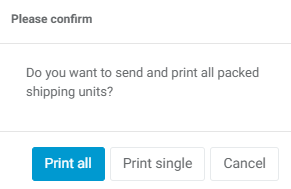
The printing of shipping labels can also be automated via process control in the customer order.
If the option is deactivated for the business partner and individual shipment registration is to be carried out at VCE, shipment consolidation must be deactivated at VCE.
Additional service returns
In the header data of the customer order, relevant information such as the carrier, delivery terms, etc. can be entered in the Transport tab. Among other things, the Create returns label checkbox can be activated here, so that this is also generated directly in the shipping process.
Notes on VCE mapping
The following fields are additionally mapped in the VCE interface starting with version 2.148:
|
COGLAS |
VCE |
Remark |
|---|---|---|
|
Host reference nr |
reference |
|
|
Number |
orderNo |
|
|
Customer reference nr |
deliveryNoteNo |
|
|
Advanced shipping note (ASN) number |
asn |
At the shipment number level |
|
Delivery remarks |
avis + value |
The delivery note is sent to VCE as text |
|
Shipping additional services |
|
Are passed to VCE as text using parameter logic |
|
Truck license plate number |
truck_licenceplate |
The truck license plate number is transferred to VCE when it is entered into COGLAS |
In addition, the shipment number and the customer reference position are also passed at the position level.
Using parameter logic, additional fields can also be passed to VCE and mapped accordingly within VCE.
Kuehne+Nagel
For Kuehne+Nagel, communication takes place via SFTP, which is why no settings regarding access credentials need to be configured here in the COGLAS interface. The customer must request the data from K+N.
The following are required:
-
Business partner type: Carrier
-
Service configuration: TourOut_vX
-
Report template for K+N labels
-
Shipping additional services for unloading place or recipient
When transmitting shipment data from COGLAS, K+N accepts the data even if the goods value field is left blank, should that data no be maintained.
Karl Jürgensen
Communication with the Karl Jürgensen freight forwarder is carried out via SFTP. Therefore, no access credential settings need to be configured in the COGLAS user interface.
The required SFTP credentials must be requested directly from Karl Jürgensen by the customer and provided to COGLAS.
The following is required:
-
Business Partner Type: Freight Forwarder
-
Service Configuration: TourOut_v1
-
Report Template for the shipping label in the Karl Jürgensen format, including the number range
-
Shipping Additional Services for the unloading location and/or consignee
Shipment tracking
If a shipment is sent directly from COGLAS via a connected parcel service, the tracking ID is added directly to the storage unit.
The tracking number is also added later to the customer order under the “Packages” tab and can be accessed via the search function and info scan.
→ back to COGLAS processes
→ back to COGLAS menu