
General information
In the system menu, under the Inventory category, you will find the following processes for performing an inventory.
The Inventory order uses various filter options to define which goods or storage locations from which client are to be inventoried.
When an inventory order is started, inventory receipts are created and the affected stocks/places are blocked for further processing. These receipts provide you with an overview of the processing status of the counts. The stocks in the warehouse are recorded via Inventory counting.
The inventory process has three parts:
|
Menu |
Use |
Actions |
|---|---|---|
|
Inventory Order |
To set the main criteria like locations and stock qualifications that need to be counted |
Start order (creates receipt and starts the counting) Cancel order |
|
Inventory reciept |
Detailed overview of the data set in the inventory order. Track counts |
initiate recounts Register inventory Print a summary create excel report |
|
Inventory counting |
Processing of receipt positions Recording inventory |
Confirm counting /empty places register additional stock |
Inventory Order
Inventory orders generate the header data for inventory receipts which determine the inventory count. The inventory order consists of the header data and positon data.
The following criteria can be set with the inventory order:
|
Field |
Options |
Description |
|---|---|---|
|
Number |
Free text field (alpha-numerical) |
A unique inventory order number (This can be created automatically by entering '##' and pressing 'Enter'.) |
|
Inventory type |
|
It determines whether the inventory receipt contains empty places only, stock only, or both. |
|
Priority |
number Value |
Sets the priortiy of the inventory order lower number → higher priority |
|
Inventory date before |
Date |
The stock/places with an inventory date older than the selected one should be counted. |
|
Positions per counting tour |
number value |
Determines the number of positions per started inventory count |
|
Route optimization |
selection |
determines the order in which the positions will be counted. e.g. Place order ascending/descending, Shelf level ascending/descending. |
|
Remarks |
free text field |
Input field for remarks that can be shown in following processes. |
Add Inventory order position
After entering the header data the positions need to be added to determine the storage areas to be counted.
when adding inventory order positions, either one of these options is required:
-
Place
-
Storage area code
-
Article
In addition to the required values, a variety of other data can be set to refine the inventory receipt and count.
Route optimization: Custom sort order
Individual sorting can be used to define how counting orders are carried out in the warehouse.
For example, if you want to perform an inventory count according to the following scheme
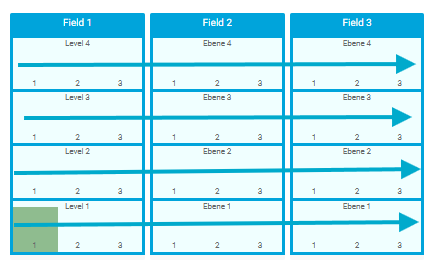
This can be entered in the Topology Excel list under the CustormSortNumber column.
Level 1 then receives, for example, the number 1.
Level 2, number 2, etc.
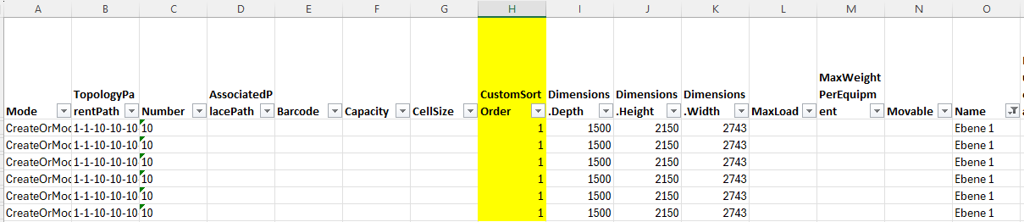
The inventory count is then carried out in the selected order (ascending/descending) based on the stored values. In this case, in level 1 from "left" to "right."
Inventory receipt
The inventory receipt is the direct follow up list from the inventory order, it has the individual positions from the higher-level selection of the order.
For example: If on the Inventory order a single HighRack field was selected it is on position on the order. The Inventory reciept will show the different locations within the field as single positions.
It offers further details to counted positions and options to administrate like recounts and reports.
Inventory counting
Inventory counting involves physically counting and recording stock. The counting process will work through the lists in the order set for route optimisation in the inventory order.
Depending on the warehouse type and assigned counting method (stock, empty space, complete), different masks are displayed.
As a general rule, you are instructed to go to a designated storage location and confirm this by scanning it for validation.
Stock counting order control center
The Stock Counting Order Control Center provides an overview of inventory order positions and their status. It is also possible to assign selected positions to users.
Preparing for an inventory
order volume
It must be ensured that all transports to the warehouse, internal transports, and picking orders must be completed by the start time of the inventory (for this client).
Due to the inventory counts, reserved stocks may no longer be available (shortage), which can lead to order picking being interrupted (no more stock in the picking zone, no more replenishment stock available, etc.).
delimitation clarification
It must be clarified with the customer whether there are deadlines for posting incoming and outgoing goods (including for posting in external systems or feedback to ERPs). At the specified time, it should then be clearly defined which goods must be counted and which do not.
goods received
Goods receipts that have already been booked but have not yet been transported to the warehouse must be recorded in accordance with the accrual clarifications.
If recording is desired, these goods should ideally be transported directly to the warehouse BEFORE the inventory order is created, or posted to a block location, and then this block location should be added to the inventory count.
Goods receipts that are not to be counted in the inventory should ideally be identified as such by means of a "visual block." It is not recommended to transport these goods to the warehouse during the inventory, as they could then be recorded as additional stock.
Customer orders / Provisions / Picking
If there are transport orders from storage locations to be inventoried, the following may occur:
The transport order can be processed. The inventory count will go to this storage location as the target result and perform a count there; depending on the transports/picking that have been carried out, this may result in no stock being found there.
This can lead to evaluation problems after the inventory has been completed (stock before inventory, stock after inventory). It is recommended that you process and complete all open customer orders BEFORE starting the inventory, or cancel the transport orders. Otherwise, when the inventory is completed, any inventory adjustments that result in reservations no longer having sufficient stock may prevent the new stock for these items/counts from being transferred. In this case, the transport order for the item must be canceled in order to allow the inventory to be completed.
Mixed Pallets
Mixed pallets in stock where the items are only on one layer should be broken up. Mixed pallets where there are items with different quants on one SU must also be broken up, as it is not possible to correctly assign the counted stock to the item.
If the quants are on loadin untis that are on a carrier pallet, you will notice the slowdown during the inventory count process when identifying the individual goods on the carrier unit. Here, too, the rule is: the fewer, the better, the faster.
Inventory list before stocktaking
It is advisable to export an inventory list before starting the inventory.
Creating inventory orders
An overview is created showing which goods need to be counted at which storage locations. In addition, the number of storage units/locations that need to be counted is determined.
By specifying the duration of an inventory, you can now determine a daily/hourly rate that defines the number of counting teams (please note that sufficient end devices must then be available/plan for aerial work platforms or gondolas in addition to industrial trucks, and take battery/rechargeable battery runtimes into account).
Given the known topology of the warehouse system, it is NOT recommended to work with only one inventory order, which is then used by the main node to determine all storage locations "downwards."
It is BETTER to link inventory orders to the topology of the warehouse system, for example, by creating an inventory order for shelf 01, 02, block cold storage 33, etc.
This increases the number of inventory orders, but it allows for significantly better allocation to counting teams, while also providing a better progress indicator for the inventory count via the status of the respective lists.
Calling up inventory orders via STOCK COUNT is usually much faster than a COMPLETE COUNT. Once the inventory count has been completed, an empty space check can be carried out if desired. With a COMPLETE COUNT, all stocks of all CLIENTS in the selected storage area to be counted are ALWAYS recorded, as otherwise it is not possible to assign and check empty spaces.
Inventory list after completion of inventory
When the inventory list is exported after booking the inventory, the lost stock is of course also listed as inventory.
This means that all stocks that were NOT found must be deleted from Lost (alternatively, these stocks can also be posted to a block such as "PermantentLost" in order to document the losses in the system. However, this block must not be located in the billing zones or available stock zones).
All items found should be posted to the Found storage location and, once the inventory is complete, transferred to the "correct" storage location.
Additional options
The client options can be used to control:
-
Enable zero crossing inventory
Zones
|
Zone type: Stock counting order execution |
Description |
|---|---|
|
ValidateStorageLocationBarcode |
During inventory counting, only the barcode of the storage location is scanned. The user scans the barcode on the storage location and is shown all the storage units and articles located there. Quantities need to be recorded and confirmed. Once the inventory count is complete, a query appears asking whether there are any further SU available. |
|
ValidateSSCC (Standard) |
During inventory counting, only the SSCC of the SU is scanned. Current behavior when StockCountingOrde.Options.StockCountingOrderExecution.ValidatePlace is set to OFF |
|
ValidateStorageLocationBarcodeAndSSCC |
During inventory counting, only the storage location barcode and then the SSCC of the LE are scanned. Current behavior when StockCountingOrde.Options.StockCountingOrderExecution.ValidatePlace is set to ON |
Inventory Clarification
If a system zone "InventoryClarification" is located on a node, the uncounted stocks are posted to the node. If partial quantities are missing, the partial quantity is posted to the inventory node. If the counted quantity = 0, the entire LE is transferred. However, if there is no system zone "InventoryClarification," these are still written off.
Warnings
The following warnings may occur within the processes:
|
Warning |
Description |
|---|---|
|
Inventory order not started. Nothing to do. |
An inventory order has been started despite there being no positions in the order. |
|
The inventory order has wrong status for positions to be deleted |
Positions can only be deleted if they have the status Created. |
|
At least one inventory receipt position is not counted |
Only counted positions can be recounted. |
|
Form validation failed. Please, check the data entered |
When duplicating inventory orders, no number or no unique number was recorded. |
|
Storage Unit already counted |
The storage unit has already been counted. The barcode was scanned a second time. |
→ back to COGLAS processes
→ back to COGLAS menu