
General information
The inventory order overview shows inventory orders. These orders generate the header data for inventory receipts.
There are different statuses for inventory orders.
|
Status |
Description |
|---|---|
|
Created |
The inventory order was only created but not started. |
|
In process
|
|
|
Recount |
All requested recounts were carried out. |
|
Counted |
All items in the inventory order have been counted. |
|
Done |
The order has been counted in full and the inventory receipt has been registered, the new stock levels have been updated in the storage locations/quants, and the block on the storage locations for this order has been lifted. |
|
Deactivated |
The created order has been deactivated and is no longer available. |
|
Cancelled |
The order has been canceled. |
Inventory order overview
The Inventory Order Overview shows all inventory orders. The overview can be adjusted using various filters, such as:
-
Status
-
Creation Date
-
Priority
-
…
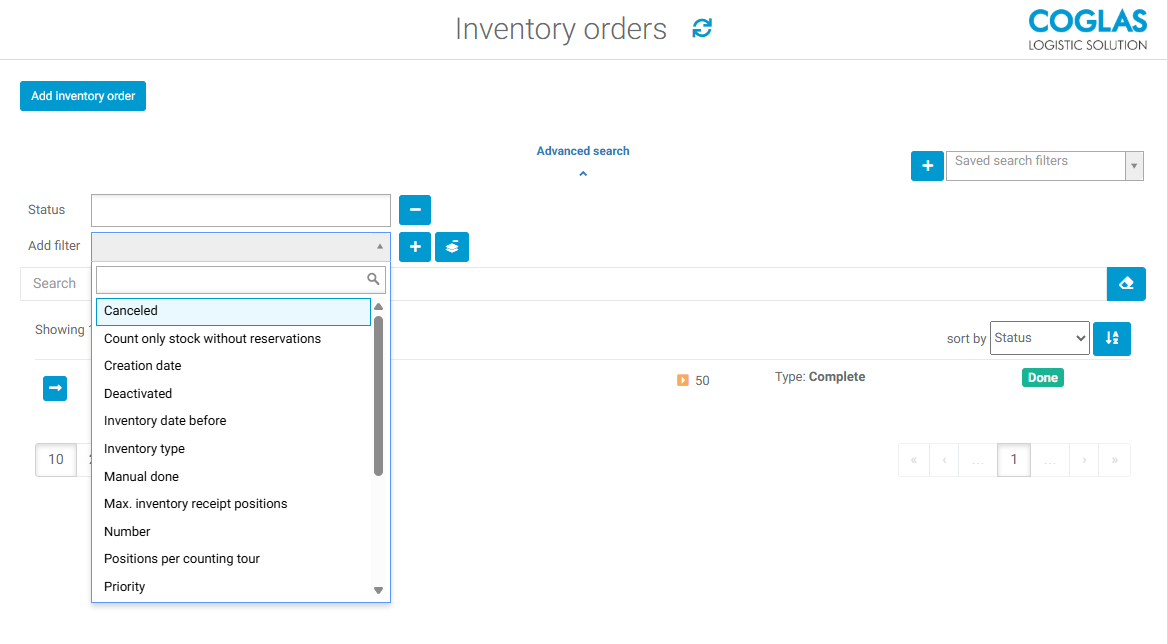
The inventory order can be opened by clicking on the arrow button or the order number.
Add inventory order
A new inventory order can be added via ‘Add inventory order’. The following fields are available:
|
Field |
Required |
Description |
|---|---|---|
|
Creation Date |
|
The creation date is set automatically and cannot be changed. |
|
Number |
yes |
A unique inventory order number (alphanumeric) must be entered here. This can be generated by entering ## and pressing Return. |
|
Inventory type |
yes |
|
|
Count only stock without reservations |
no |
Checkbox, if activated only stocks that do not have reservations are counted. |
|
Client |
no |
Select the client for whom the inventory count applies. Only available when inventory type stock is selected |
|
Priority |
yes |
Possibility to set a priority (lower number - higher priority) Default=50 |
|
Inventory date before |
no |
Only considers objects that have an older inventory date. |
|
Positions per counting tour |
no |
Number of positions assigned to an employee in succession to ensure physical separation between employees at their workstations. |
|
Route optimization
|
no |
Hier kann nach Lagerplatz auf und absteigend, Ebene auf und absteigend gewählt werden. Auch ist eine individuelle Sortierung möglich (Die ind.Sortierung wird über die Topology gesetzt, und zwar im Feld CustomSortNumber) siehe auch individuelle Sortierung |
|
Remarks |
no |
Free text for comments. |
Once the inventory order header has been created, the following activities can be performed:
|
Button |
Description |
|---|---|
|
Pen |
Opens edit mode |
|
Paper sheets |
The inventory order can be duplicated. ATTENTION: All positions will also be duplicated! Duplication makes it possible to map multi-clients. |
|
Add inventory order position |
Here, the counting positions belonging to the order are added. This is only possible while the order status is 'Created'. |
|
Start order |
Starting the inventory order will create an inventory reciept and inventory counting for the positions specified within the order. Corresponding stock and storage locations will be blocked, this is also visualised in the warehouse overview: Storage Locations will be shown as greyed out, so are the storage units. In the storage units overview corresponding units will have a blocked remark. |
|
Select all on current page (unselect all on current page) |
selects all positions listed on the current page or removes the selection |
|
checkbox (position) |
manual selection of certain positions |
|
Delete selected |
Once positions have been selected, they can be deleted as long as their status is ‘Created’. |
|
Trash can |
A single position can be deleted using the "trash can" icon as long as its status is ‘Created’. |
|
Arrow |
Shows the position details, possibility to edit the position via the pencil button. |
|
cancel order |
Cancels the entire inventory order, items already counted are discarded, blocks are lifted. |
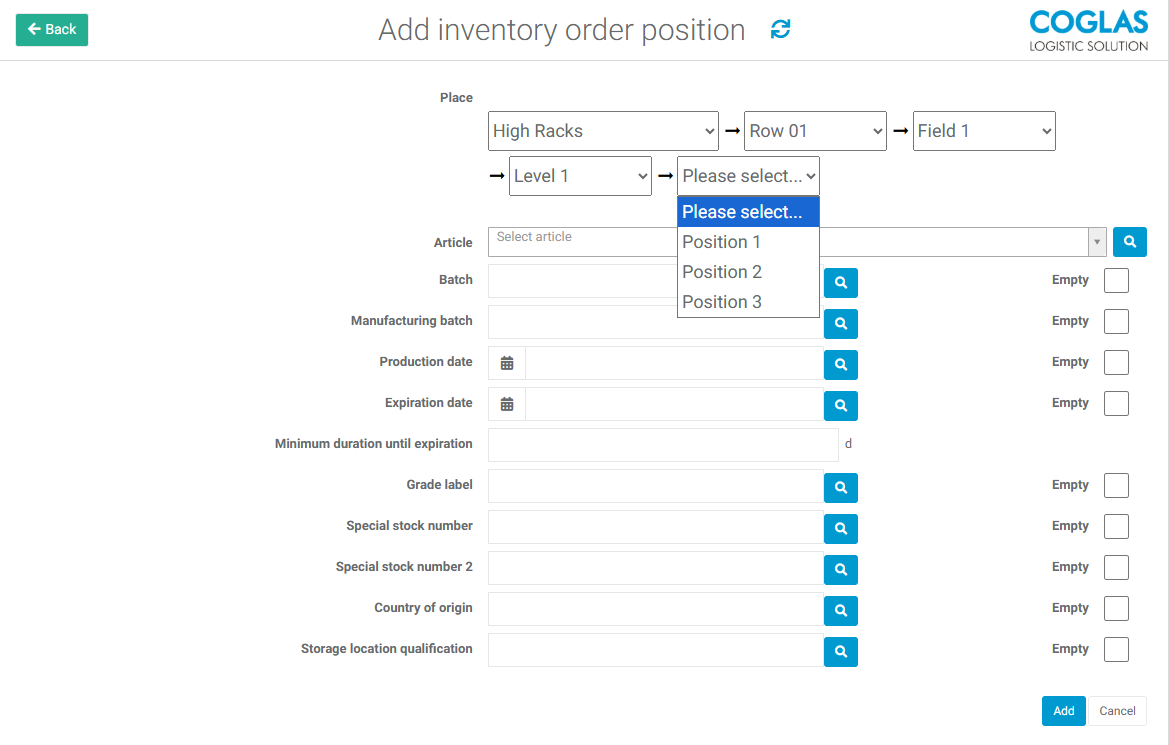
Add Inventory order position
when adding inventory order positions, either one of these options is required:
-
Place
-
Storage area code
-
Article
the remaining inputs are optional to further specify the stocks considered for counting.
Required Input
|
Input |
Description |
|---|---|
|
Place |
|
|
Storage area code |
There is the possibility of counting different zones with set storage area codes. |
|
Article |
Counting a specified article in all locations. |
Different types of inventory
|
Inventory Type |
Description |
|---|---|
|
Stock |
Only storage locations that have stock in COGLAS will be considered for counting. If needed the inventory type stock can be limited to a client. |
|
Empty placs |
Only storage locations without stock will be considered for counting. |
|
Complete |
All storage locations (empty and with stock) will be put on the Inventory Order. Also all stock regardless of the client will be considered. |
|
MaxInventoryReceiptPositions |
This limits the number of positions on a single inventory receipt. If this field is left empty, there is no limit to the number of positions. |
|
Count only stock without reservation |
Only stocks that do not have reservations are counted. It is also taken into account that there are no reservations on any quantity in mixed storage units. Otherwise, these are sorted out. The checkbox is only displayed for inventory type stock. |
Blocking
Depending on the settings, the inventory order either blocks the stock or the storage location, preventing any changes to inventory positions.
→ back to COGLAS processes
→ back to COGLAS menu