
General information
The list of open tours is displayed in the overview. In addition to the tour number and the carrier, it also contains the order numbers and the number of order items that the tour comprises.
Selecting a line opens the detailed view of the tour, in which editing is possible.
Any number of sales orders can be assigned to a tour.
In addition to dependence on the carrier or allowed partial shipments, additional criteria can be set in the header data of the customer order under Process Control -> Loading Sorting, based on which sales orders can be grouped into a single tour.
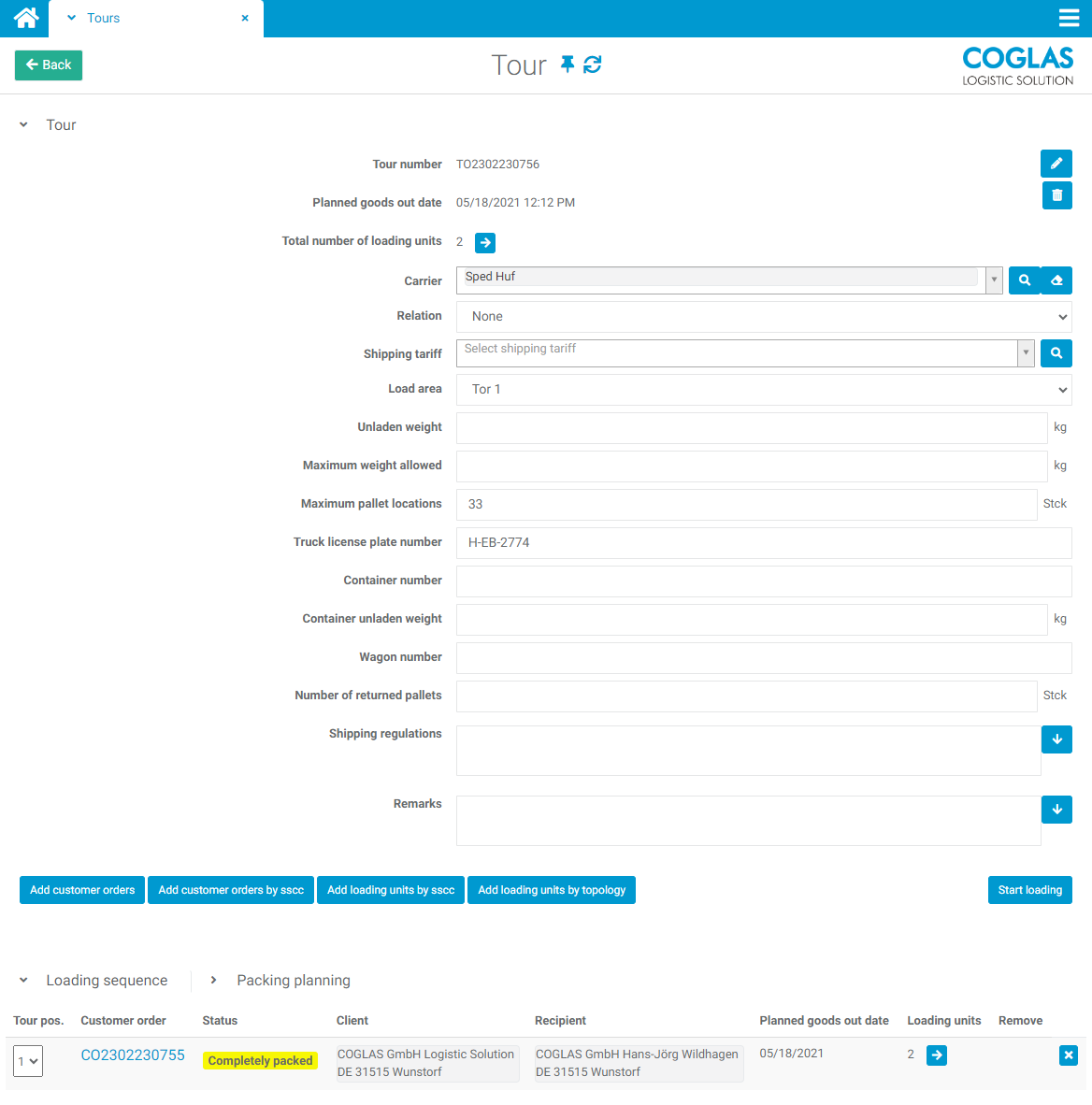
Add tour
Enables the creation of a new tour and the entry of all known data. Data can be entered at an early stage before the actual loading. Further information can also be added later on in the tour.
The tour is finally created with the [Add tour] button.
|
Input field |
Required field |
Description |
|---|---|---|
|
Tour no. |
Yes |
Tour number of the customer order. |
|
Goods out date |
|
The planned goods issue date. |
|
Total number of positions |
|
Number of tour items already stored. Display only. |
|
Forwarder |
Yes |
Selection of the forwarder. |
|
Relation |
|
Selection of the relation. |
|
Tariff |
|
Selection of the tariff. |
|
Loading area |
Yes |
Selection of the loading gate. |
|
Empty weight |
Yes |
Empty weight of the tour. |
|
Permitted maximum weight |
Yes |
Maximum permitted weight of the tour. |
|
Maximum pallet spaces |
|
Maximum permitted number of pallet spaces. |
|
Lorry registration number |
|
Free text |
|
Container no. |
|
Free text |
|
Empty weight container |
|
Free text |
|
Wagon no. |
|
Free text |
|
Number of pallets returned |
|
Free text |
|
Shipping instructions |
|
Free text |
|
Remarks |
|
Free text |
Relation and tariff fields:
-
Function description see Transport → Transport rules → Sorting destinations
-
The fields have the format "Selection lists" with stored input values. If no input values are entered in the project, this is a free text entry.
-
Automatic transfer of the fields from the sales order.
-
If several sales orders are assigned to a joint tour, the first sales order decides on the content of the Relation and Tariff fields when the tour no. is created.
Delete tour
The "Delete tour" function is located under the icon for editing the tour.
Prerequisite:
-
Tour Mandatory field "Forwarding agent". First maintain any "Forwarding agent".
-
Tour has no assigned sales order. Remove any assigned sales order at the bottom of the tour by clicking on the "Trashbin" symbol.
-
COGLAS version from 2.54 (optional)
If the "Delete tour" function is not displayed, you may need to exit the tour once and access it again.
Add customer orders
This function can be used to add orders to the tour at any time, which are loaded together via the outgoing goods department. Only customer orders that either do not yet have a carrier or have the carrier entered in the tour are displayed in the selection.
Orders can also be added to or removed from a tour by editing the tour number field in the order editor.
If a tour includes several orders, their loading sequence can be determined by changing the tour position.
Start loading
The transport orders for the selected loading area are generated here. Depending on the start option selected for the sales order, the load units to be loaded are either in the staging area (Start order for staging) or still in the storage area (Start order for picking).
In any case, all contained sales orders must have the status "Ready for loading" at the start of the tour.
→ back to COGLAS processes
→ back to COGLAS menu