
General
The Reebooking orders form can be used to transfer stock qualification information with or without moving the goods.
Reservation logic follows that of the strategies for customer orders. Changes are recorded in the transaction history. Feedback on changes can be provided using both the "StockTransformation" message type and the "Rebooking Order" message type.
Rebooking orders overview

The rebooking order overview displays all rebooking orders. This can be filtered using various options.
Add rebooking order
New rebooking orders can be added using this button. A new window opens for editing the header data.
Required fields are Number and Client
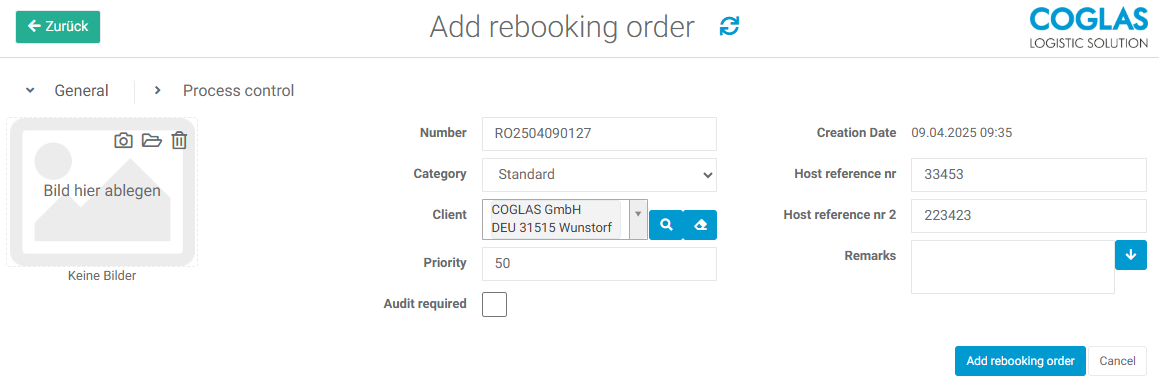
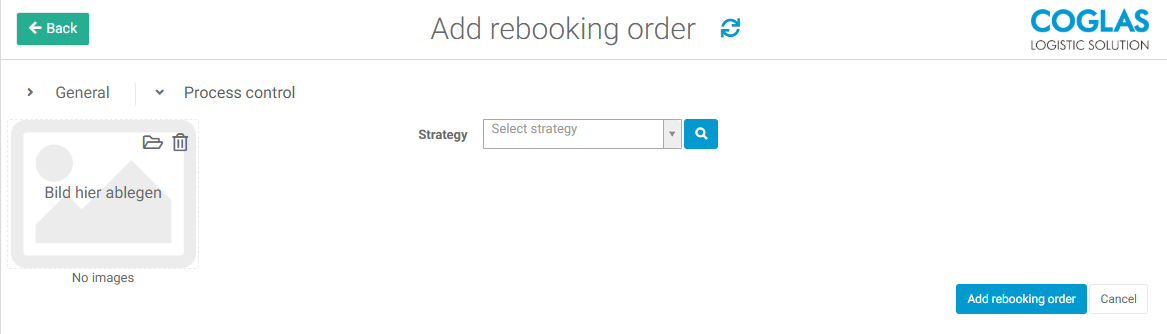
|
Input options - General |
Explanation |
|---|---|
|
Number |
Unique number of the rebooking order. Can be generated with ##, entered manually, or transferred via interface. |
|
Category |
Here, you can select the category manually. It can also be transferred via an interface. The values can be maintained under Input options. |
|
Client |
A client can be selected from the business partner or transferred via an interface. |
|
Priority |
A priority can be entered here or transferred via an interface. |
|
Creation date |
Set automatically when creating |
|
Host reference nr. |
A reference number can be entered here or transferred via an interface. |
|
Host reference nr. 2 |
Another reference number can be entered here or transferred via an interface. |
|
Remarks |
Comments on the transfer order can be entered here or transferred via an interface. |
|
Audit required |
The check mark can be used to set the order to "Audit required" status. The status can also be set via the interface. |
|
Input Options - Process control |
Explanation |
|
Strategy |
Here, a stored strategy from the kind Rebooking can be selected or transferred via an interface. |
Edit multiple rebooking orders
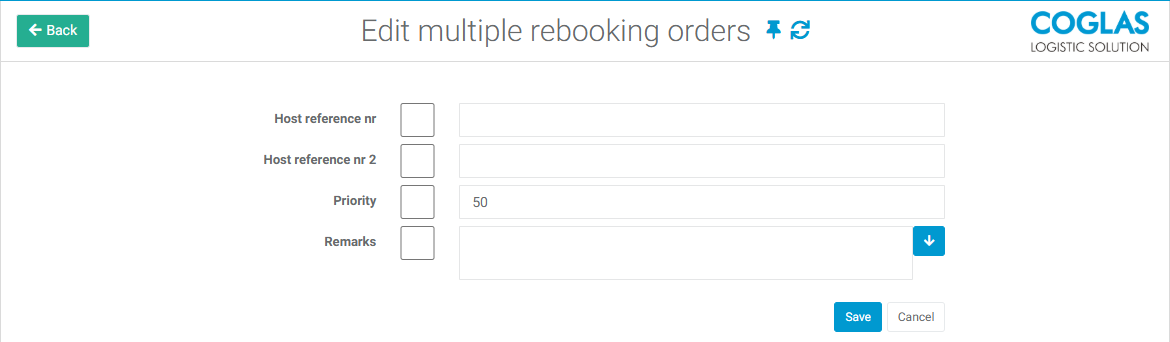
The following values can be edited using multi-editing:
-
Host reference nr.
-
Host reference nr. 2
-
Priority
-
Remarks
If all selected orders already have the same value at the time of selection, the value is already preset.
If a new value is to be accepted, the checkbox must be activated.
When you click Save, only the selected values for all transfer orders are transferred.
Start orders
The Start Orders button ensures that all selected orders are started using the stored strategies.
An order can also be started via the interface.
Add rebooking order
After the order header is created the position data can be added.
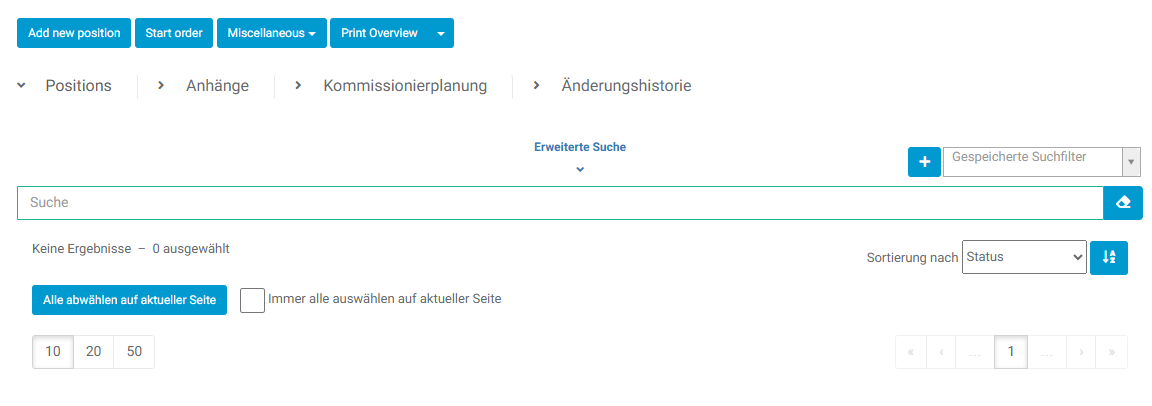
Add new position
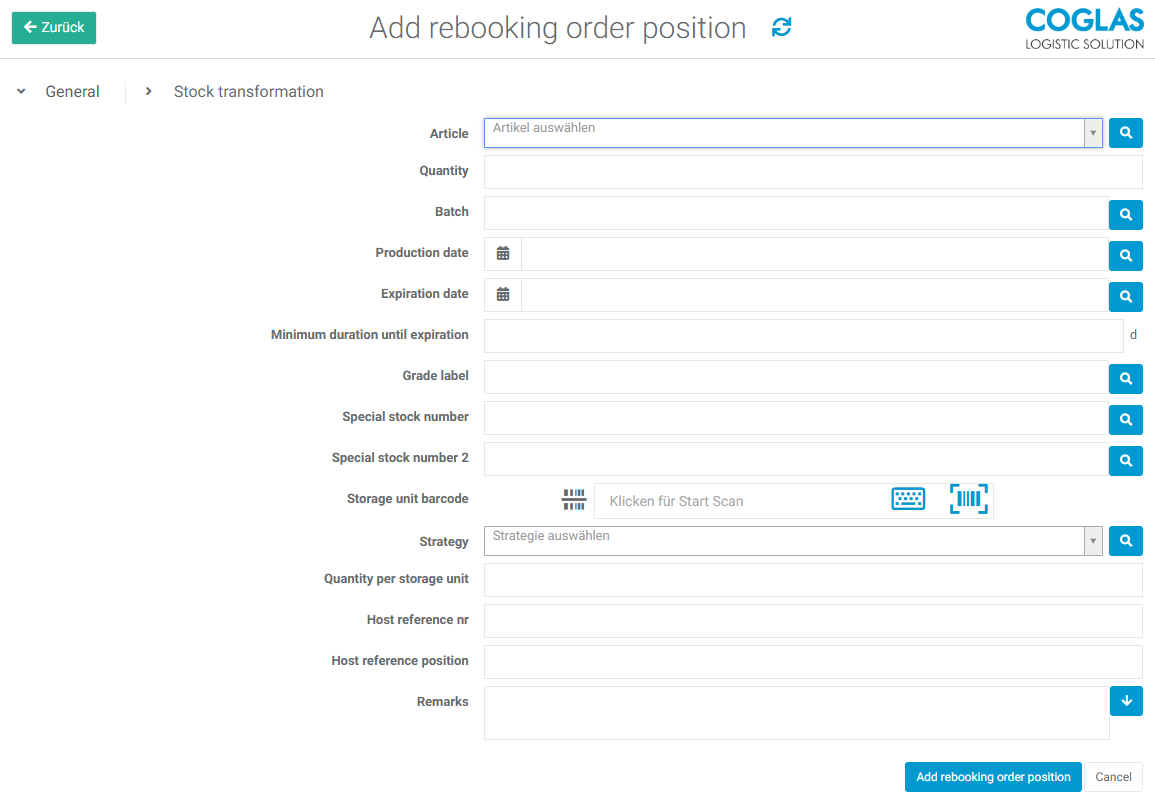
Individual positions can be added via Add new position. Here, you can either maintain the total quantities or, alternatively, enter the information at the SU level or transfer it via an interface if discrete storage units are to be rebooked.
The values for the storage units to be transferred are maintained in the "General" tab. The target values to which the transfer is to be made are maintained in the "Stock Transformation" tab.
|
Input - General |
Description |
|---|---|
|
Article (required) |
The source article to be rebooked |
|
Quantity (required) |
Quantity to be rebooked |
|
Batch |
Only storage units with this batch are considered a valid source. |
|
Manufactoring Batch |
Only storage units with this manufactoring batch are considered a valid source. |
|
Production date |
Only storage units with this production date are considered a valid source. |
|
Expiration date |
Only storage units with this best-before date are considered a valid source. |
|
Minimum duration until expiration |
Only storage units with this minimum remaining shelf life are considered a valid source. |
|
Grade label |
Only storage units with this quality mark are considered valid sources. |
|
Special stock number |
Only storage units with this Special stock number are considered valid sources. |
|
Special stock number 2 |
Only storage units with this Special stock number 2 are considered valid sources. |
|
Country of origin |
Only storage units with this country of origin are considered valid sources. |
|
Storage location qualification |
Only storage units with this storage location qualification are considered valid sources. |
|
Storage unit barcode |
Only storage units with this barcode are considered valid sources. |
|
Strategy |
Add a to strategy the position
|
|
Quantity per storage unit |
Only storage units with this quantity are considered valid sources. |
|
Host reference nr |
Only storage units with this reference number are considered valid sources. |
|
Host reference position
|
Only storage units with this reference position are considered valid sources. |
|
Remarks |
Only storage units with this note are considered valid sources. |
The "target values" can be entered via the Stock transformation tab. To set a target value, select the desired data from the list and add it via the "plus" button. Then, enter the value in the input field.
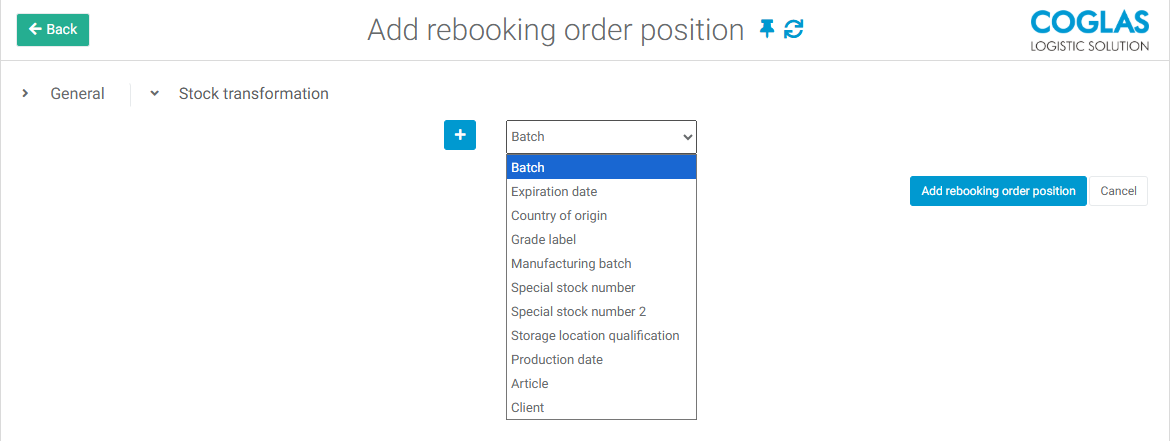
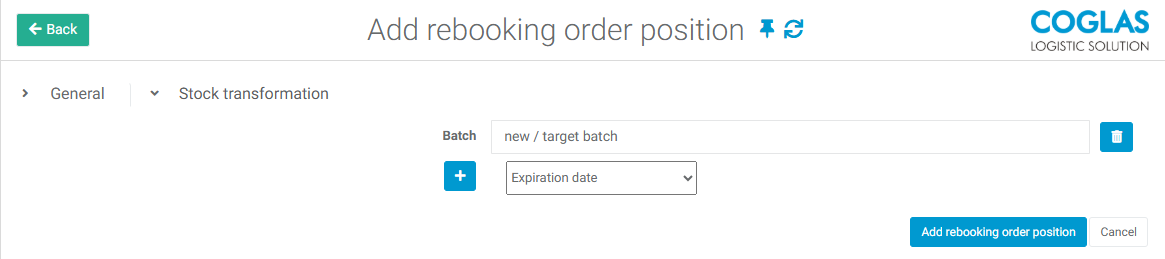
|
Input - Stock transformation |
Description |
|---|---|
|
Batch |
Target value to be set |
|
Expiration date |
Target value to be set |
|
Country of origin |
Target value to be set |
|
Grade label |
Target value to be set |
|
Manufacturing batch |
Target value to be set |
|
Special Stock Number |
Target value to be set |
|
Special Stock Number 2 |
Target value to be set |
|
Storage location qualification |
Target value to be set |
|
Production date |
Target value to be set |
|
Article |
Target value to be set |
|
Client |
Target value to be set |
Add new order via shop floor
It is also possible to enter rebooking orders via Shopfloor.
To do this, the items to be rebooked are first placed in the shopping cart and then added to a transfer order using the "Add rebooking order" button. You can select whole storage units under Storage Units’ tab.
Additional filters can be applied as needed.
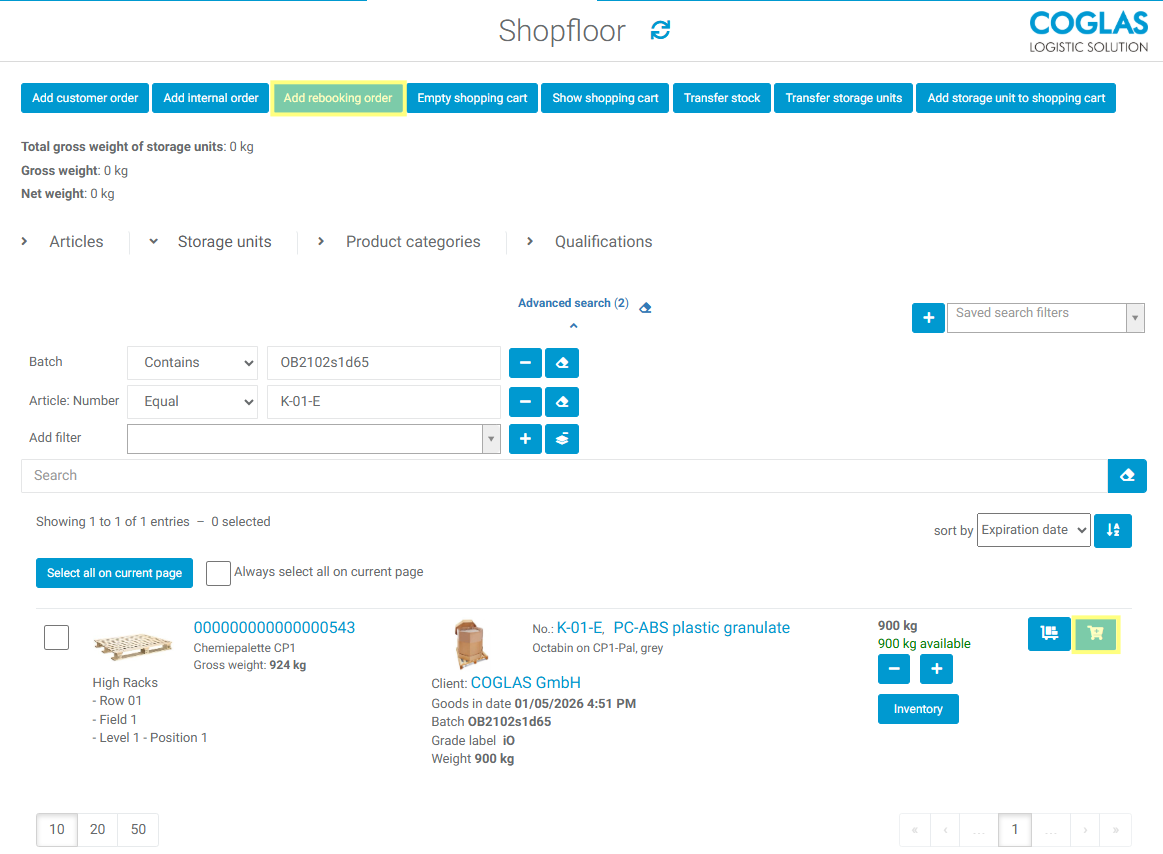
Once the rebooking order has been created, you can maintain the target values in the position details by clicking on the pencil button to enter edit mode, then opening the 'Stock transformation' tab.
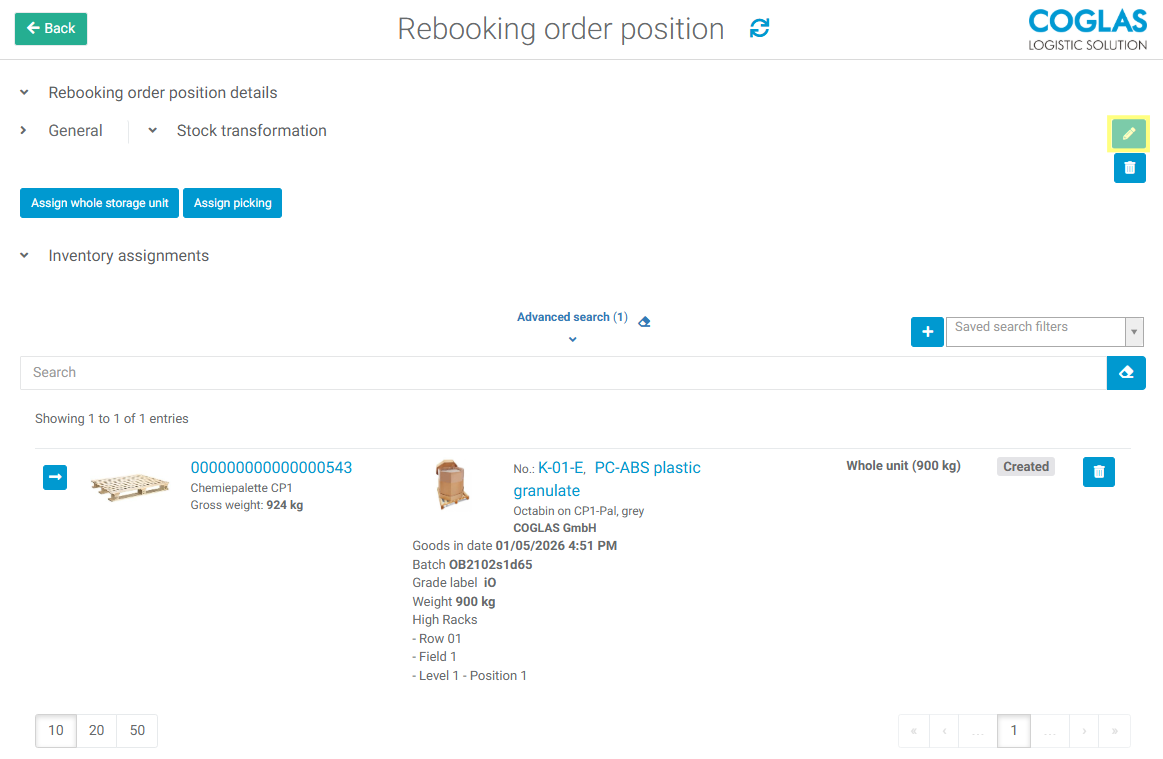
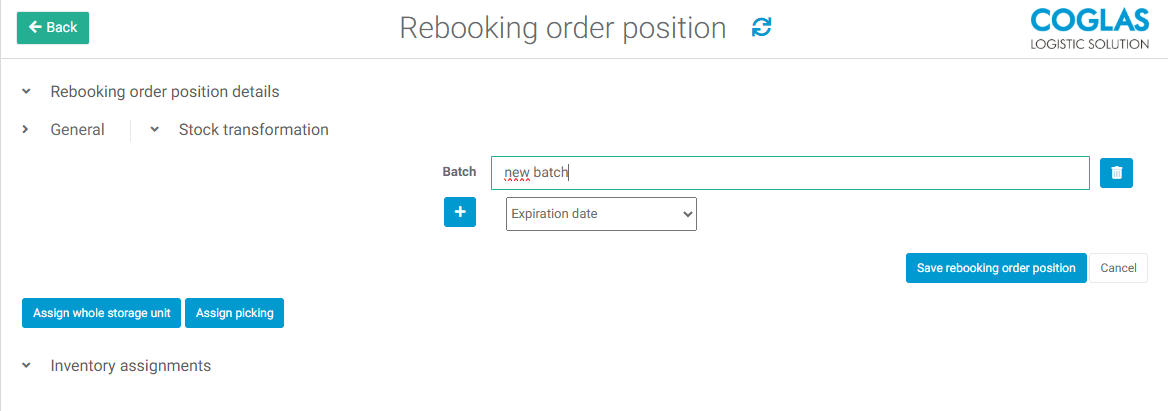
Save the rebooking order position if all the necessary values are maintained.
Add a strategy
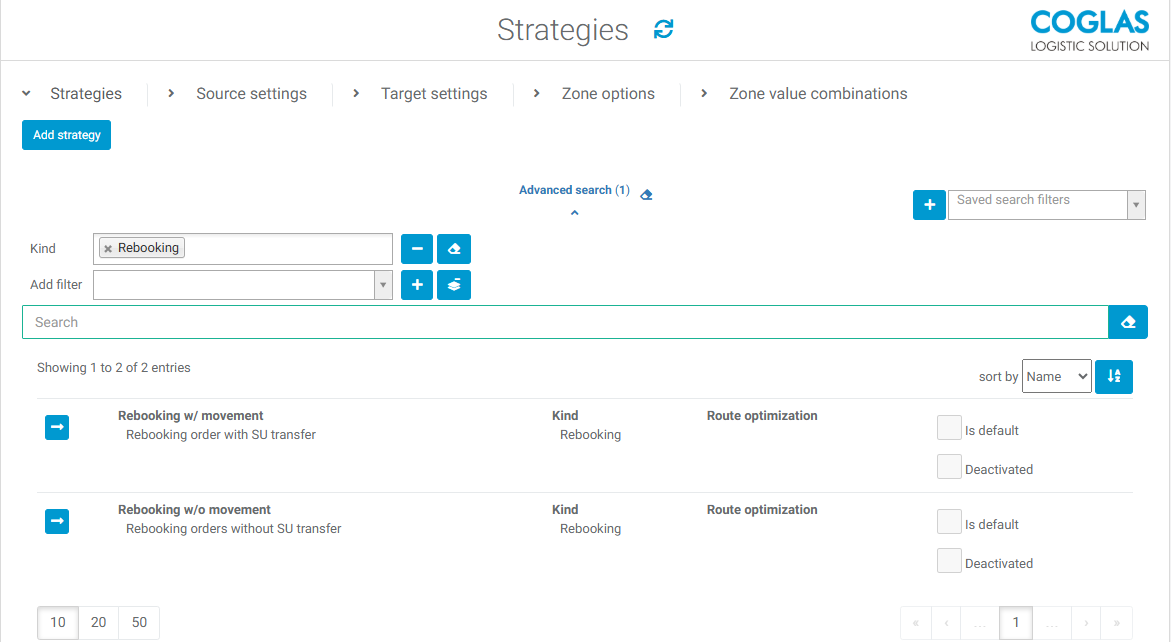
A suitable transfer strategy is set up via Strategies .
This is of the kind "rebooking."
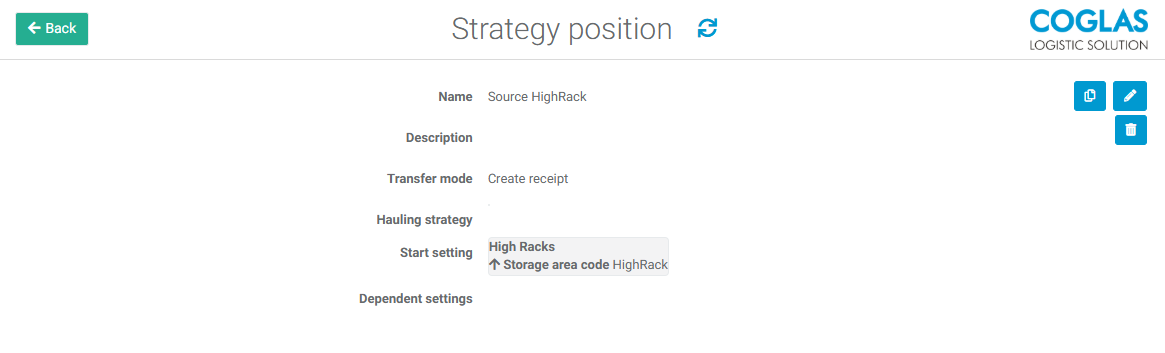
As usual, the strategy consists of a source and target position.
Transfer storage units from a high-rack source to a rebooking target location. Set the transfer mode to "Create Order."
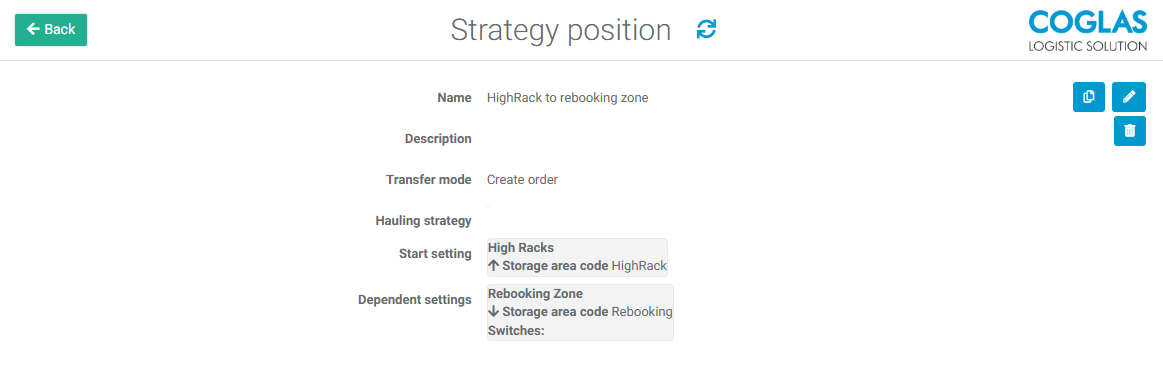
To handle a rebooking directly without creating a transfer order, select the 'Create receipt' transfer mode. This means that no transfer order will be created and the rebooking will be processed without any further storage unit handling.
Execution
Execution with provisioning
As soon as a storage unit has been made available at the target storage location as a full pallet transport or via picking, the rebooking order is carried out.
In this case we set our rebooking order with the strategy rebooking w/ movement.
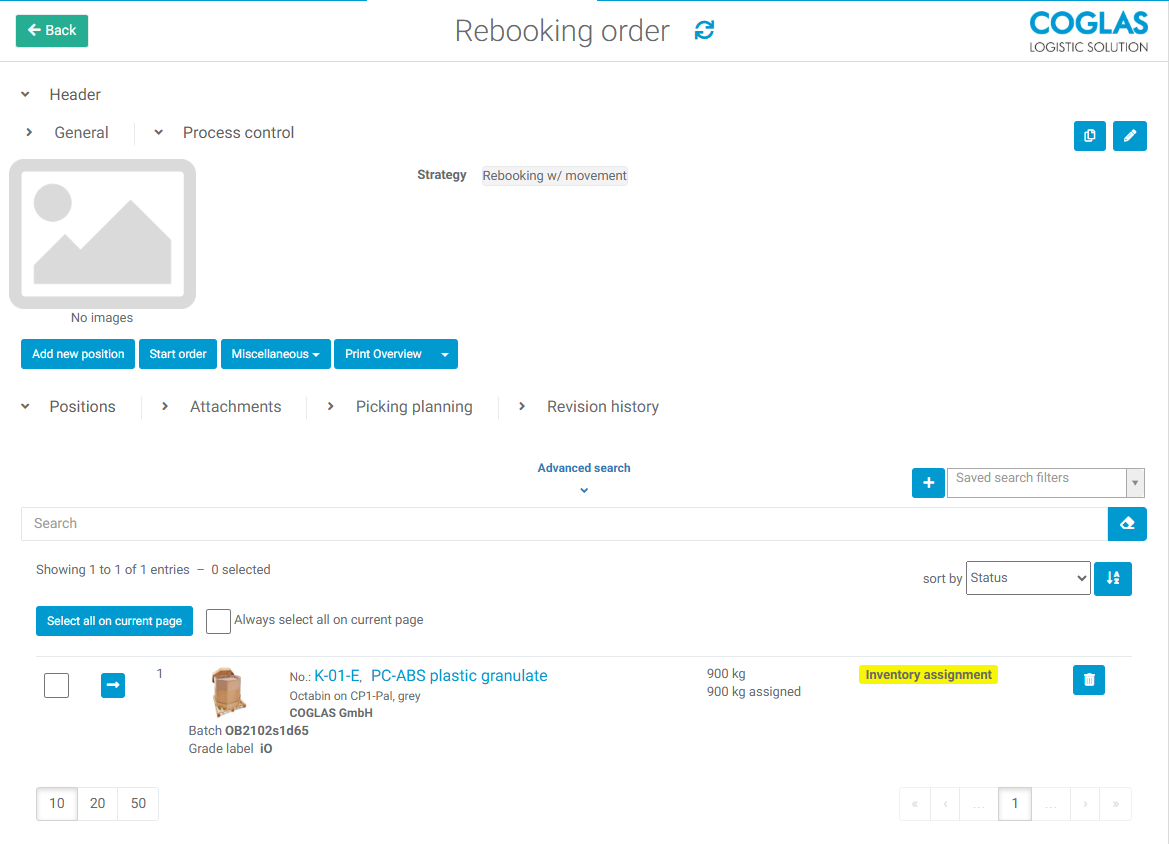
After starting the order the transfer order will be created and the status will switch to ‘In process’
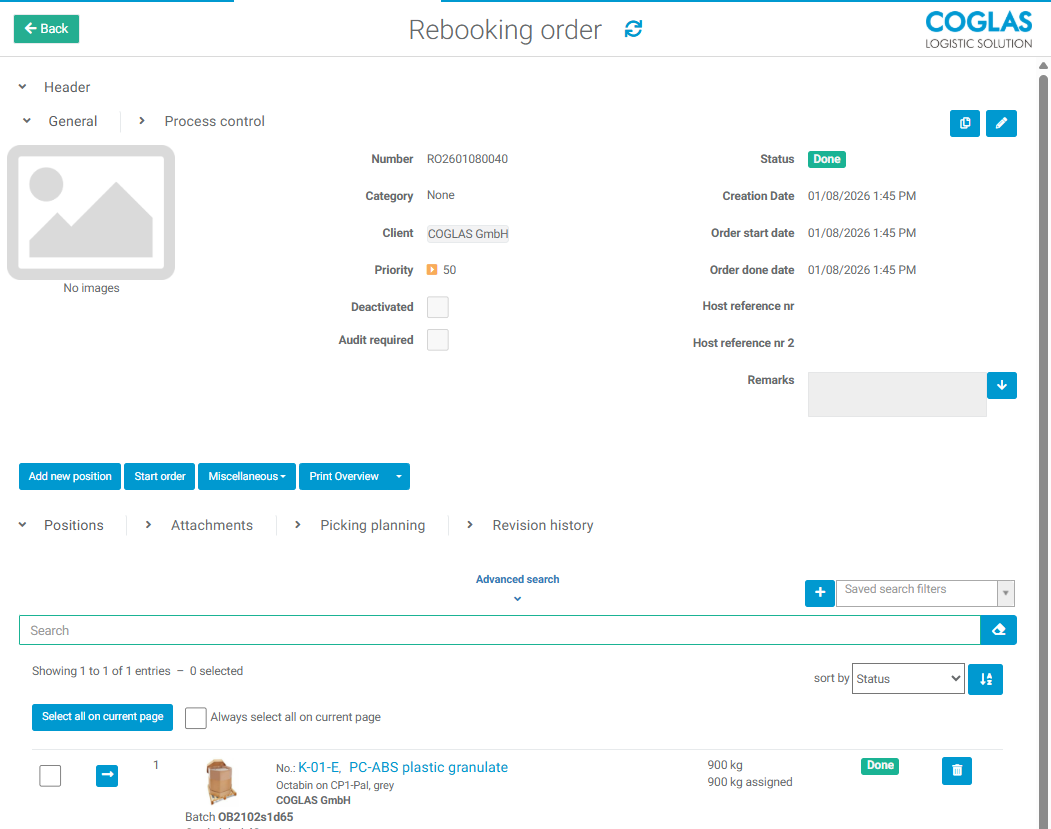
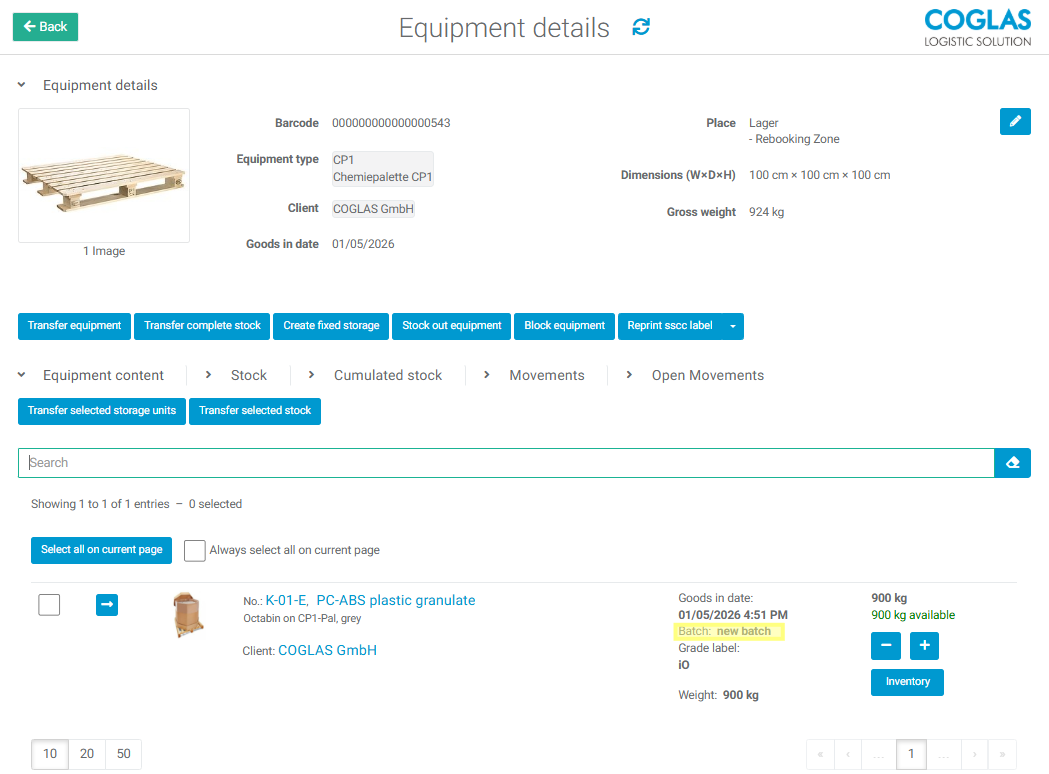
When the rebooking transfer is carried out the new values will be applied and the status will switch to 'Done'.
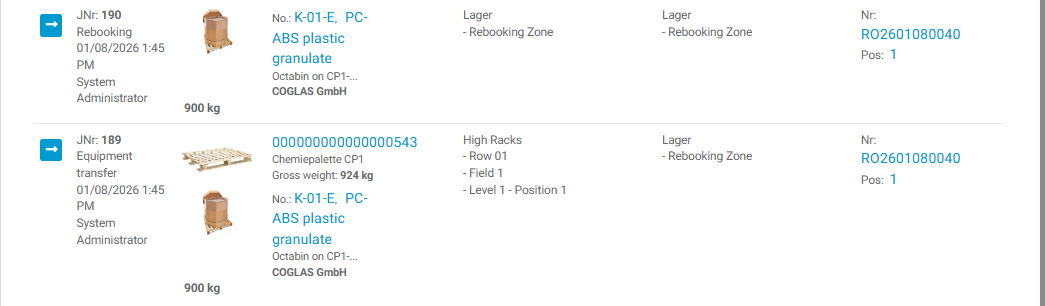
Execution without provisioning:
If the transfer mode is set to "create receipt," the goods are rebooked immediately after the reebooking order is started:

No transfer is required; the rebooking will be made at the current storage location.
Setup service configuration/query via API
If feedback on the completed rebooking is to be sent to the host system, this can be done via the service configuration. Here, the message type RebookingOrderDone is automatically pushed when the rebooking order has been executed.
If auto send is also active in RebookingOrder, manually created rebooking orders are also pushed to the stored service URL.
The transfer order can be queried via API. To do this, the checkbox ‘Is calloff’ must be selected in the service configuration.
The query for this is:
Whereby the variables apply as follows:
{{customer}} = Website
{{Number}} = Rebooking order number
{{Client}} = Client
Create a rebooking order via interface
Rebooking orders can also be created via interface. Manual import via Excel, XML, or JSON is possible.
Example with specified storage units and client change
In this example, special storage units are specified.
This involves transferring to a new client and new article number. In addition, a new batch or new best-before date is assigned.
    {
      "ClientNumber": "010",
      "CreationDate": "2025-04-10T08:29:17.764Z",
      "HostReferenceNumber": "",
      "HostReferenceNumber2": "",
      "ImageFiles": [],
      "IsAuditRequired": false,
      "IsDeactivated": false,
      "ManualDone": false,
      "Number": "RO2504100133",
      "Priority": 50,
      "Remarks": "",
      "StrategyName": "Rebooking w/o movement",
      "Positions": [
        {
          "ArticleNumber": "13547831",
          "Batch": "345345",
          "ExpirationDate": "2025-08-13T22:00:00Z",
          "GradeLabel": "",
          "HostReferenceNumber": "",
          "HostReferencePosition": "",
          "ManualDone": false,
          "Number": 1,
          "Quantity": 1000.0,
          "QuantityUnit": "Stck",
          "Remarks": "",
          "SpecialStockNumber": "",
          "SpecialStockNumber2": "",
          "StockTransformation": "{\"ExpirationDate\":\"2025-09-10T22:00:00Z\",\"ArticleNumber\":\"94908123\",\"ClientNumber\":\"M002\"}",
          "StorageUnitBarcode": "5445873845345"
        },
        {
          "ArticleNumber": "13547831",
          "Batch": "12345",
          "GradeLabel": "",
          "HostReferenceNumber": "",
          "HostReferencePosition": "",
          "ManualDone": false,
          "Number": 2,
          "Quantity": 1000.0,
          "QuantityUnit": "Stck",
          "Remarks": "",
          "SpecialStockNumber": "",
          "SpecialStockNumber2": "",
          "StockTransformation": "{\"Batch\":\"52345234\",\"ArticleNumber\":\"94908123\",\"ClientNumber\":\"M002\"}",
          "StorageUnitBarcode": "212345670000000644"
        },
        {
          "ArticleNumber": "13547831",
          "Batch": "",
          "GradeLabel": "",
          "HostReferenceNumber": "",
          "HostReferencePosition": "",
          "ManualDone": false,
          "Number": 3,
          "Quantity": 1000.0,
          "QuantityUnit": "Stck",
          "Remarks": "",
          "SpecialStockNumber": "123",
          "SpecialStockNumber2": "",
          "StockTransformation": "{\"Batch\":\"5890234\",\"ArticleNumber\":\"94908123\",\"ClientNumber\":\"M002\"}",
          "StorageUnitBarcode": "212345670000000651"
        }
      ],
  "_MessageTypeKey": "RebookingOrder_v1"
}
RebookingOrders_v1_mitVorgabeLagereinheiten.xlsxRebookingOrders_v1_mitVorgabeLagereinheiten.xmlRebookingOrder_mitVorgabeLagereinheiten.json
Example with different scenarios
This example illustrates various scenarios.
Position 1: Change of batch from BATCH-A to BATCH-B
Position 2: Change of special stock number 44234 auf 34234234
Position 3: Change of Article number 6141013 auf 32899170
Other scenarios are of course possible and can be created.
   {
      "ClientNumber": "010",
      "CreationDate": "2025-04-10T08:29:17.764Z",
      "HostReferenceNumber": "",
      "HostReferenceNumber2": "",
      "ImageFiles": [],
      "IsAuditRequired": false,
      "IsDeactivated": false,
      "ManualDone": false,
      "Number": "RO2504100133",
      "Priority": 50,
      "Remarks": "",
      "StrategyName": "Rebooking w/o movement",
      "Positions": [
        {
          "ArticleNumber": "13547831",
          "Batch": "BATCH-A",
          "ExpirationDate": "2025-07-17T22:00:00Z",
          "GradeLabel": "",
          "HostReferenceNumber": "",
          "HostReferencePosition": "",
          "ManualDone": false,
          "Number": 1,
          "Quantity": 10.0,
          "QuantityUnit": "Stck",
          "Remarks": "",
          "SpecialStockNumber": "",
          "SpecialStockNumber2": "",
          "StockTransformation": "{\"Batch\":\"BATCH-B\"}",
          "StorageUnitBarcode": ""
        },
        {
          "ArticleNumber": "77710181",
          "Batch": "",
          "GradeLabel": "",
          "HostReferenceNumber": "Referenz Nr 3145234",
          "HostReferencePosition": "",
          "ManualDone": false,
          "Number": 2,
          "Quantity": 124.0,
          "QuantityUnit": "Stck",
          "Remarks": "",
          "SpecialStockNumber": "44234",
          "SpecialStockNumber2": "",
          "StockTransformation": "{\"Batch\":null,\"SpecialStockNumber\":\"34234234\"}",
          "StorageUnitBarcode": ""
        },
        {
          "ArticleNumber": "6141013",
          "Batch": "",
          "GradeLabel": "",
          "HostReferenceNumber": "",
          "HostReferencePosition": "",
          "ManualDone": false,
          "Number": 3,
          "Quantity": 34.0,
          "QuantityUnit": "Stck",
          "Remarks": "",
          "SpecialStockNumber": "",
          "SpecialStockNumber2": "",
          "StockTransformation": "{\"ArticleNumber\":\"32899170\"}",
          "StorageUnitBarcode": ""
        }
      ],
  "_MessageTypeKey": "RebookingOrder_v1"
}
RebookingOrders_v1_verschiedeneSzenarien.xmlRebookingOrders_v1_verschiedeneSzenarien.xlsxRebookingOrder_v1_verschiedeneSzenarien.json
→ back to COGLAS processes
→ back to COGLAS menu