
Generel
Menu: System → Storage technology devices
The storage system to be controlled is recorded with the parameter data using the Storage technology devices menu. The configuration of a storage system is entered in the profile with “Add storage technology device”. If everything has been entered successfully, the system can then be remote controlled via the COGLAS WEB WMS solution.
|
Button |
Description |
|---|---|
|
Add storage technology device |
Enter a new storage technology entry. |
|
Enable automatic mode |
Activate automatic control. |
|
Disable automatic mode |
Deactivate automatic control. |
Add storage technology device
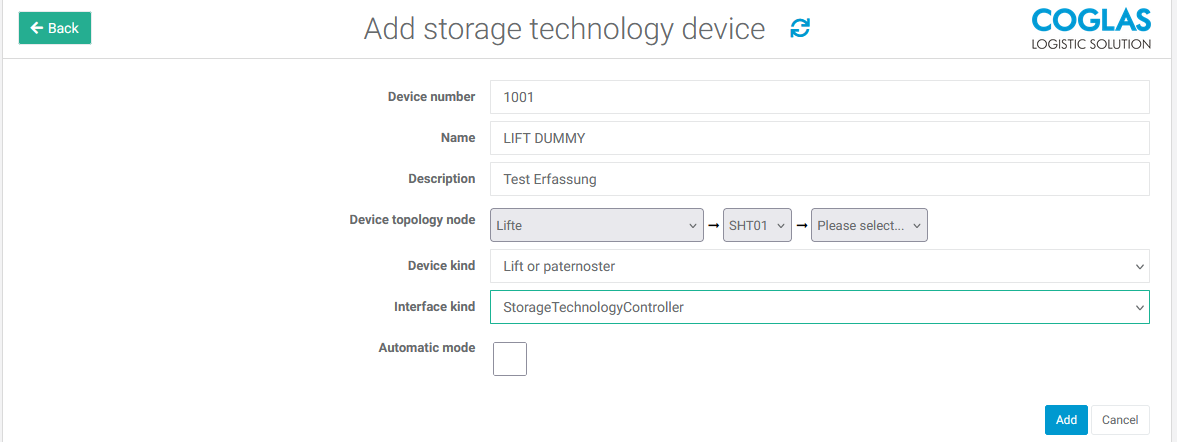
A new entry for a storage system is created with “Add storage technology device“.
|
Input field |
Description |
|---|---|
|
Device number |
The unique number of the connected storage system. The number from the configuration of the connected storage system must be determined. The customer usually provides this information. The storage system can be a lift, paternoster, shuttle or measuring device, etc. |
|
Name |
Internal COGLAS name of the storage system to be added. The name is also displayed for messages and in the logging. |
|
Description |
Freitext. Die Beschreibung des angeschlossenen Lagersystems. Free text. The description of the connected storage system. |
|
Device topology node |
Path to the topology node from the storage overview to create the link between the storage system and the topology. The device topology node depends on the “Device type”.
Note: The field is not mandatory. If the field is empty and is required according to a selected device type, the remote control of the storage device may not be successful. |
|
Device kind |
Current selection:
|
|
Interface kind |
Current selection:
|
|
Automatic mode |
Display only with “Device kind = Lift or paternoster” selected.
A decision must be made for the project as to how the control is to take place. The setting can be changed at any time. To test, the tab for the transport editing screen must be closed and reopened. |
The following combinations are common:
-
Device kind = Lift or paternoster
Interface kind = StorageTechnologyController -
Device kind = Measuring device
Interface kind = empty -
Device kind = Narrow aisle truck
Interface kind = Jungheinrich Logistics Interface local web service
Storage technology device management
A profile for storage technology device is managed in two areas.
-
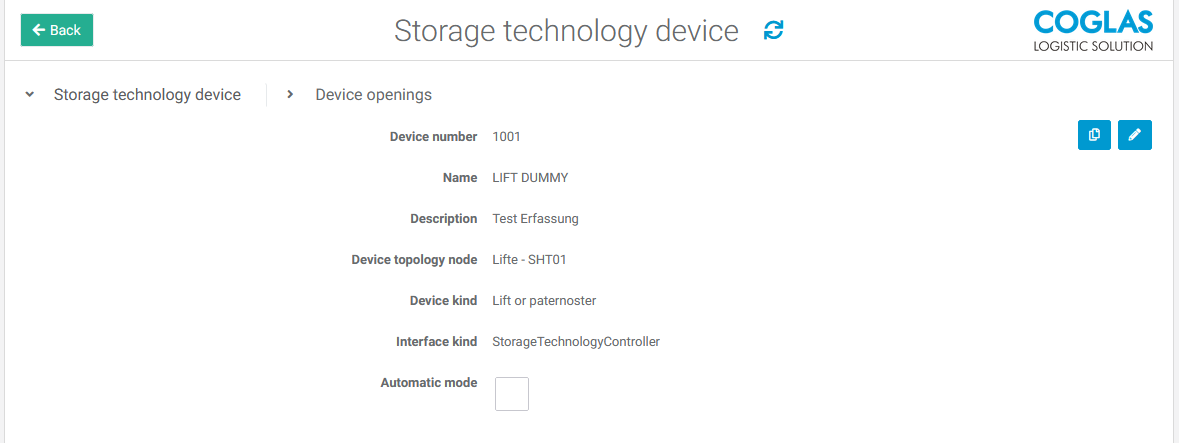
“Storage technology device" area
-
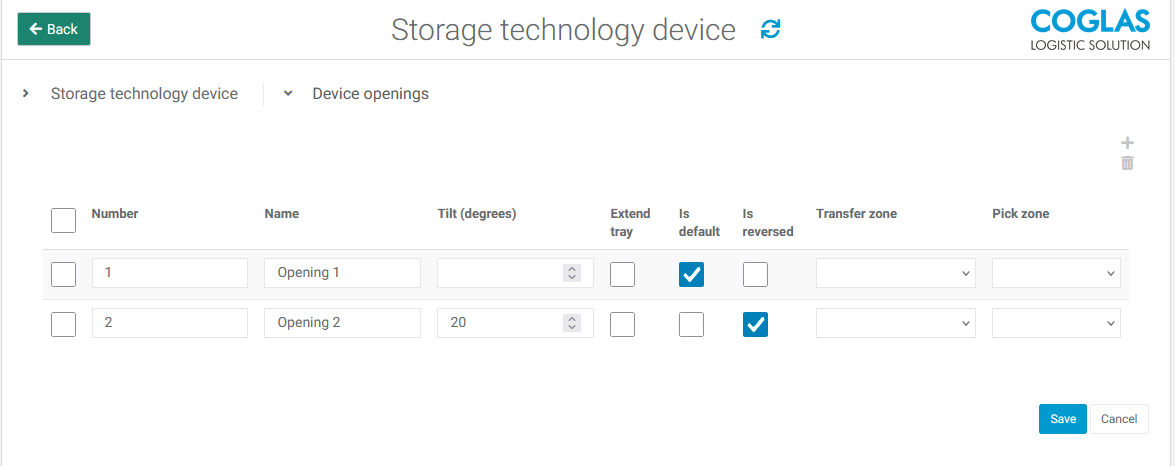
“Device openings” area
Storage technology device:
-
This area contains the data recorded during entry, such as device number, name, etc.
-
The details can be changed and saved as required using the editor.
Device openings:
-
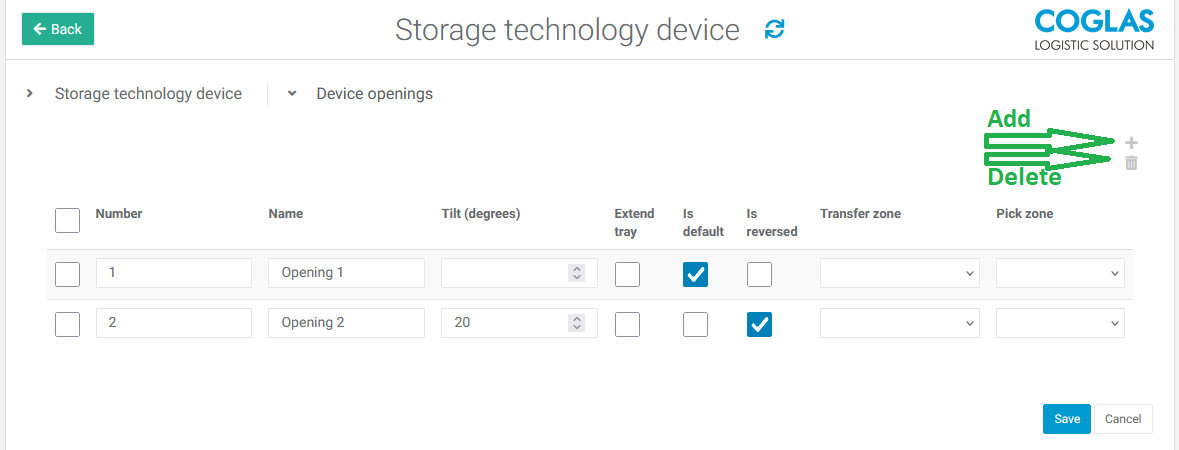
The area contains the device openings. For example, the opening on the paternoster or lift. The device openings support one or more opening for a device.
-
Each opening can be set individually to explicitly map its use.
Input fields for adding a device opening:
|
Felder |
Beschreibung |
|---|---|
|
Number |
Number of the opening (default 1). |
|
Name |
Free text. Name for the opening. |
|
Tilt (degrees) |
The angle of inclination in degrees determines whether the shelf should be raised at the top. This provides a better overview and access to the rear storage locations on the shelf. The value of the tilt angle depends on the storage system and should be adjusted accordingly. |
|
Extend tray |
Function “Extended tray” Extended output from the opening is possible. The prerequisite is that the storage system supports this function (e.g. SSI Schaefer Logimat with “LogiDrive”). |
|
Is default |
This opening is controlled by default if there is no other configuration. Only one opening can be the “Actual default”. At least one opening should be activated for this. |
|
Is reversed |
Display of the shelf is mirrored. This is useful if the opening is on the opposite side of the storage system. |
|
Transfer zone |
Selection of the corresponding assigned transfer zone. |
|
Pick zone |
Selection of the corresponding assigned picking zone. |
|
Retract tray |
No setting, only the “Retract tray ” button. If triggered, the tray moves away from the opening immediately afterwards. |
Example
|
Storage technology device |
Image |
|---|---|
|
Add storage technology device Adding a lift storage device. |
|
|
Device openings Adding a Device opening. |
|
|
Display profile |
|
|
Display Device openings |
|
→ back to COGLAS processes
→ back to COGLAS menu