
General
The “Printer controller status” menu displays the current status of the connected PrinterController, as well as whether the workstations and PrinterController are active.
Menu path: System - Administration - Printer controller status
Only one active PrinterController can be connected to the web service at a time.
Description of the “Status information” section
Info Box details:
|
Value |
Description |
Remark |
|
|---|---|---|---|
|
1 |
|
Values = True/False (On/Off) True = Client Options “System - Workstations” is enabled. False = Client Options “System - Workstations” is disabled. |
For a description of the workstation, see https://help.coglas.com/en/workstations. |
|
2 |
|
Values = True/False (On/Off) True = The PrinterController option is enabled in server\Web.Config. False = The PrinterController option is disabled in server\Web.Config. |
For a description of the PrinterController, see https://help.coglas.com/en/printercontroller. |
|
3 |
|
This section contains several key figures:
|
Display of the version and printer names only if the PrinterController is active and connected. |
|
4 |
|
Values = True/False (On/Off) The WebSocket connection displays the connection status to the web service. |
If the connection status is “false,” the version and printer names are not displayed. |
|
5 |
|
The version is displayed when a connection to the web service is established. |
The version displayed applies to the PrinterController version. |
|
6 |
|
“PrinterNames” is a list of available printers on the server where the PrinterController is running. New printer names are initialized and added when the PrinterController is restarted. |
Nur hier angezeigte Drucker werden auch im COGLAS zur Auswahl angeboten. Printer names displayed here will be available for selection in COGLAS. |
Example
|
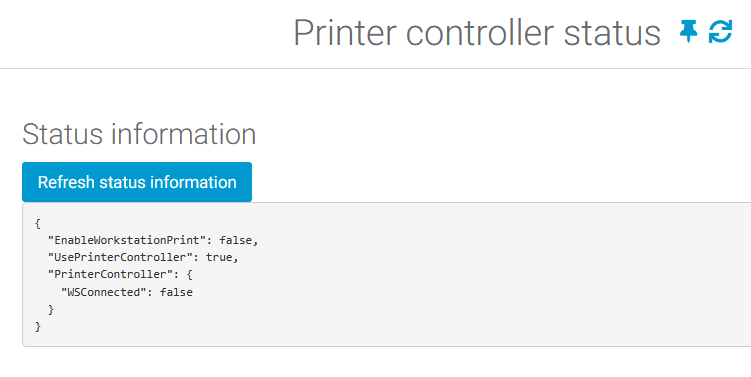
PrintController Status = inactive |
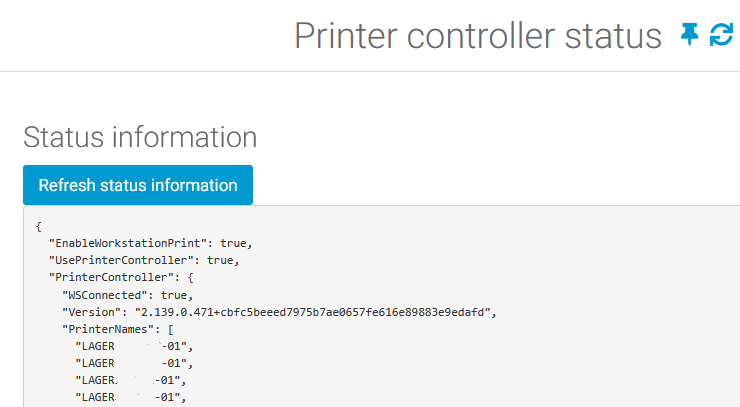
PrintController Status = active |
|
|---|---|---|
|
1 |
|
|
|
2 |
PrinterController is not active. The status display does not show detailed information.
|
PrinterController is active. The status display shows the details.
|
Warning message
|
Situation |
Solution |
|
|---|---|---|
|
1 |
Printer driver update completed. The printer name is not displayed in “Printer controller status”. |
Restart the PrinterController. Updating or reinstalling the printer driver requires a COGLAS PrinterController restart so that the printer name can be reinitialized. |
|
2 |
Printing via the PrinterController is not working. The COGLAS “Printer controller status” shows no connection. |
See example: PrintController Status = inactive. Check the Windows service.
PrinterController logging.
|
|
3 |
PrinterController has started. However, the print output is still displayed in the browser's page preview. The COGLAS “Printer Controller Status” displays everything correctly. |
Please refer to the post titled “PrinterController” for more information. |
→ back to COGLAS processes
→ back to COGLAS menu