
General
The shop floor is used for manually planning different processes, such as:
-
delivery notes (inbound)
-
customer orders (outbound)
-
internal orders
-
rebooking orders
Using the item overview with the inventory status, suggested quantities can be entered and added to the shopping cart as desired.
The shopping cart clearly and comprehensively displays all previously selected item numbers with the suggested quantities. Ideal for keeping track of the current status and/or for comprehensive planning.
The selected suggested quantities are further used for creating lists in the different proccesses.
In addition, inventories can be grouped and displayed according to product categories or various stock qualifications.
In addition, client restrictions are taken into account in the view, and the shop floor can also be accessed via the Partner Portal.
|
Display Type |
Description |
|---|---|
|
Article |
The Articles tab is the default screen. All articles are displayed here, whether in stock or not. |
|
Storage units |
All storage units with stock are displayed under the "Storage Units" tab. All storage units are displayed with their SSCC or SU number, as well as article information and stock information for the storage unit. Here, storage units can be specifically selected for orders of different types. |
|
Product categories |
In the "Product categories" tab, all stocks are displayed cumulatively according to their product category. All product categories are displayed, including those without stock. |
|
Qualifications |
All stock can be displayed under "Qualifications" and grouped according to qualifications. For example, the inventory can be grouped by article, SBK, batch, or other inventory qualification. |
Articles
The Articles overview displays all items with or without stock. You can create orders of different kinds.
In the article entry the different quantitites are available and can be selected via different options.
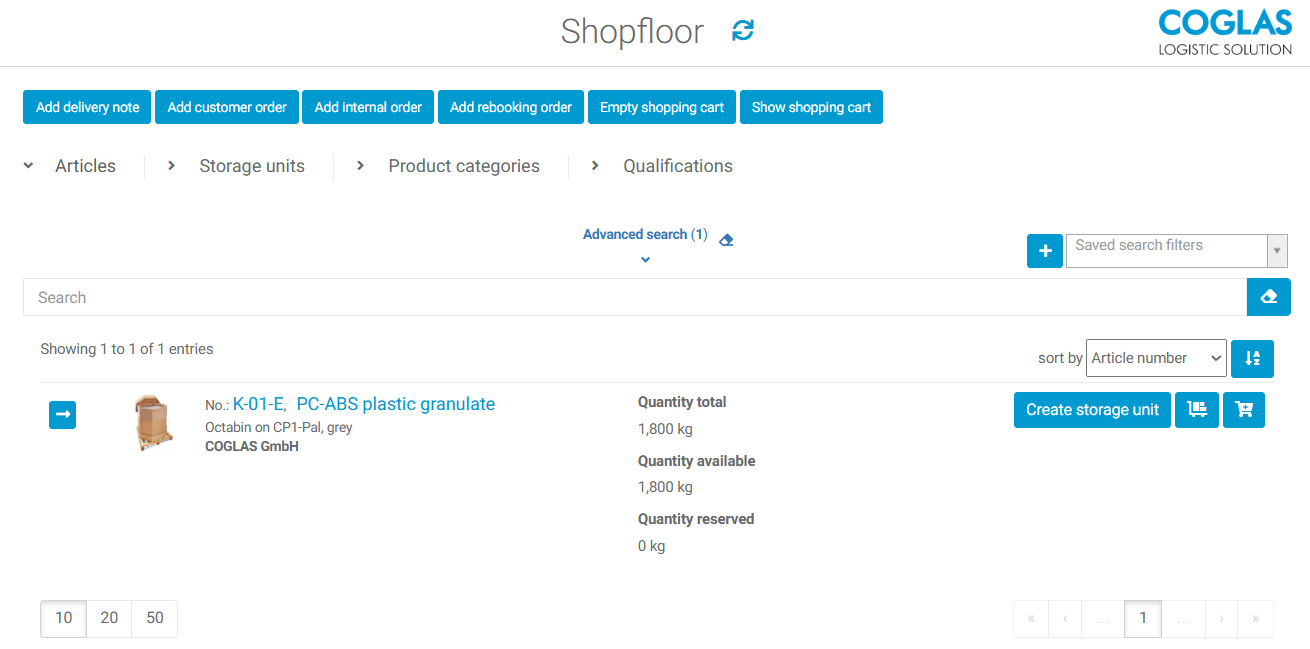
Function overview
|
Button |
Description |
|---|---|
|
preparation and selection of quantities |
|
|
|
Funktion „Lagereinheit hinzufügen“:
Note:
|

|
Selection - Total available quantity |

|
Selection - partial quantity input |
|
Function bar |
|
|
Create a new delivery note with the selected quantities. For further details check: Delivery notes |
|
Create a new customer order with the selected quantities. For further details check: Customer orders |
|
Create a new internal order with the selected quantities. For further details check: Internal Orders |
|
Create a new rebooking order with the selected quantities. For further details check: Rebooking Orders |
|
Empty shopping cart function:
|
|
Show shopping cart function:
|
|
Show all articles function:
|
Storage units
The Storage Units tab displays all storage units currently located in the warehouse. The stock can be searched or sorted using a wide variety of filters.
Sorting allows you to sort storage units according to their best-before date or production date, for example, to quickly get an overview of your inventory.
Function overview
|
Button |
Description |
|---|---|
|
preparation and selection of quantities |
|

|
Add the whole storage unit to the shopping cart |
|
|
Add a selected quantity from the storage unit to the shopping cart |

|
Delete selected quantity |

|
Add or remove quantitiy |

|
Add an inventory booking to the selected storage unit. Input means total quanitity and not a difference. |
|
Function bar |
|
|
|
Create a new customer order with the selected quantities. For further details check: Customer orders |
|
|
Create a new internal order with the selected quantities. For further details check: Internal Orders |
|
|
Create a new rebooking order with the selected quantities. For further details check: Rebooking Orders |
|
|
Empty shopping cart function:
|
|
|
Show shopping cart function:
|
|
|
Show all articles function:
|
|
Transfer stock function: Transfer the selected stock from one storage unit to another. |
|
Transfer storage units function
|

|
Add storage unit to shopping cart function
|
Qualifications
The qualifications tab is used to group stock by different qualifications like article number, batch, grade label, product category or others. As an addition the qualifications can be expaneded with Dynamic types
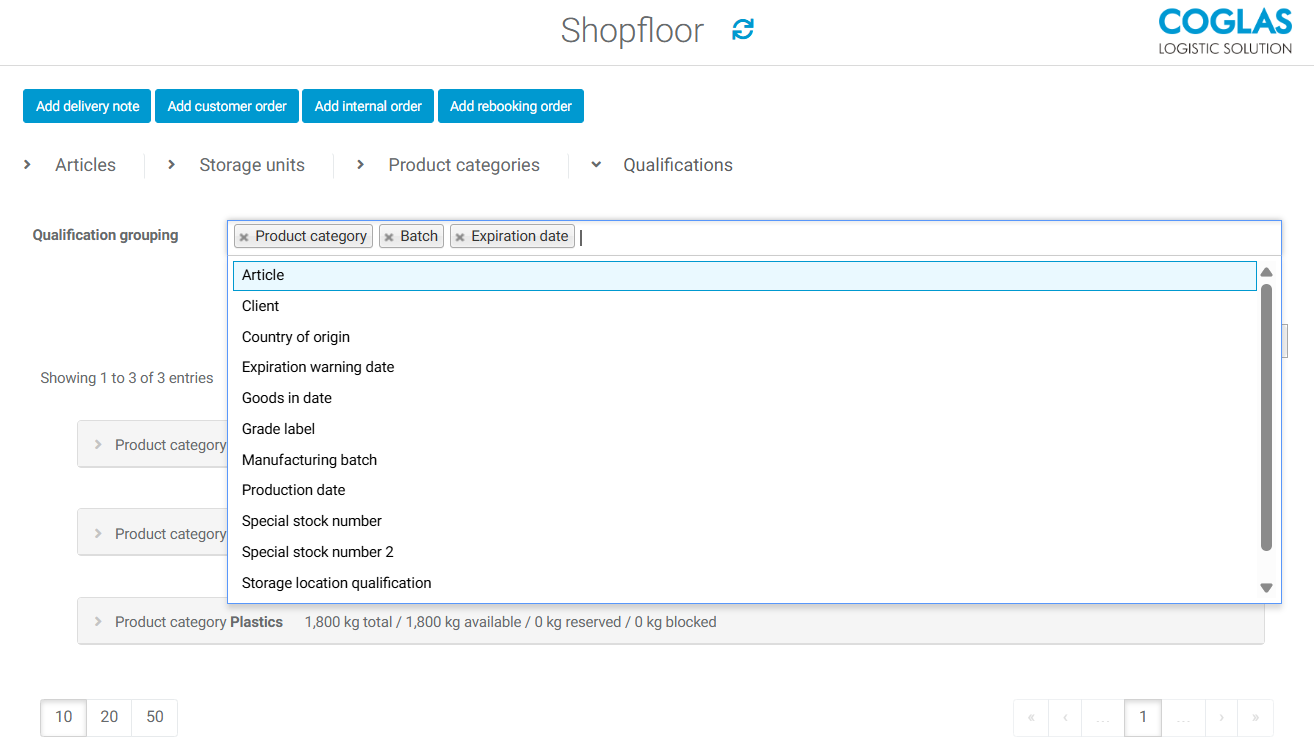
This tool is used when you want to know how much stock of something is still available with one or more specific characteristics/qualifications.
You can also specify more than one qualification. The qualification that is specified first will be grouped first, followed by the second, third, etc.
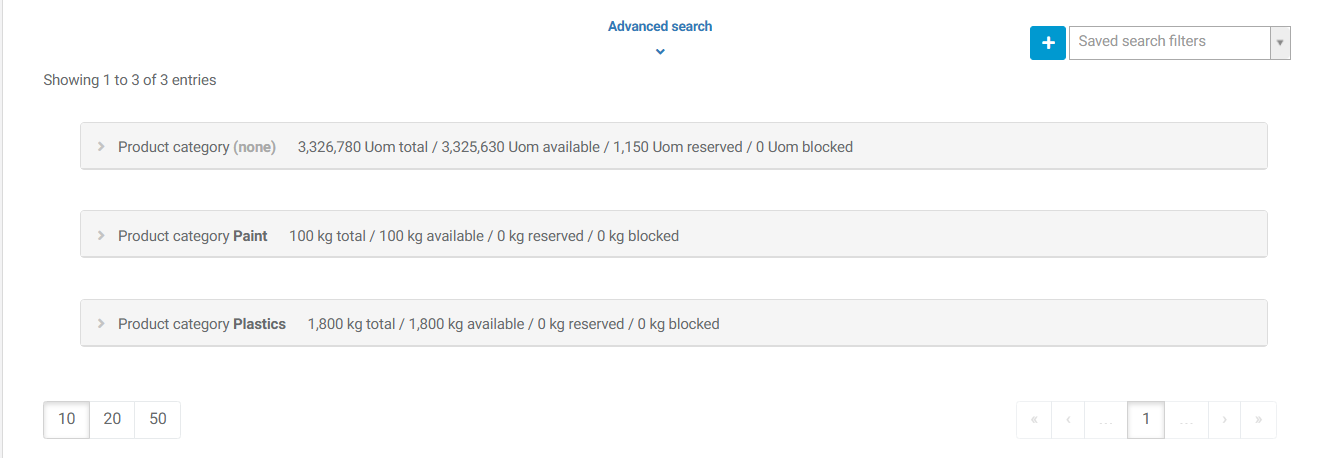
For example:

Here, the entire inventory is grouped by product category:
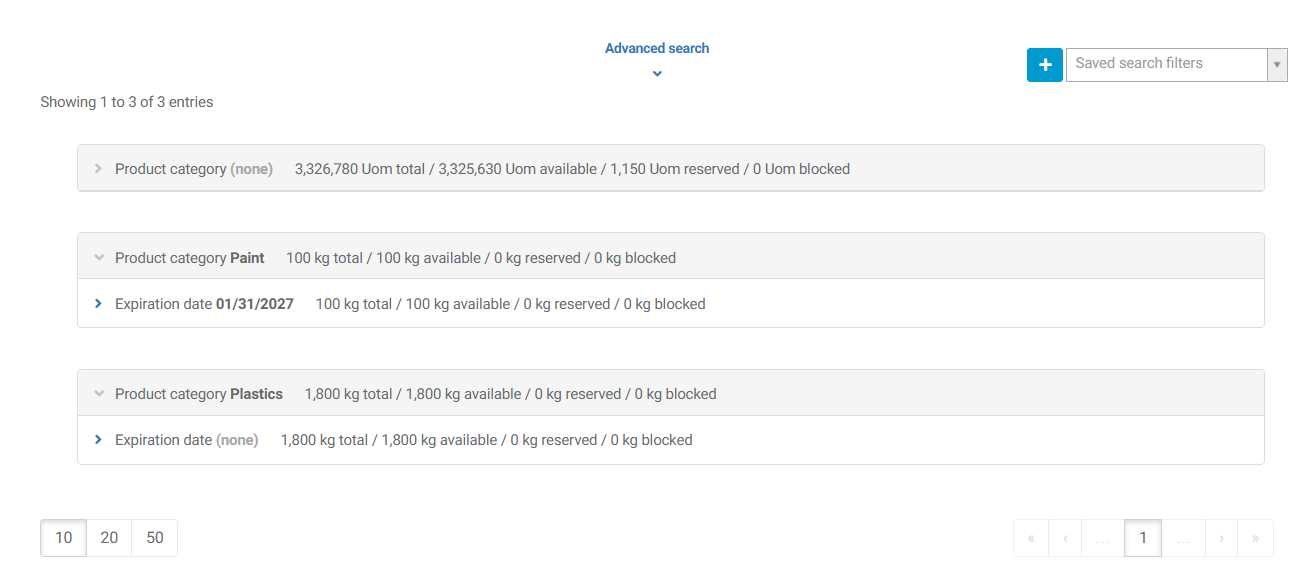
You can then expand the tab and group them according to their expiration date within this product category.
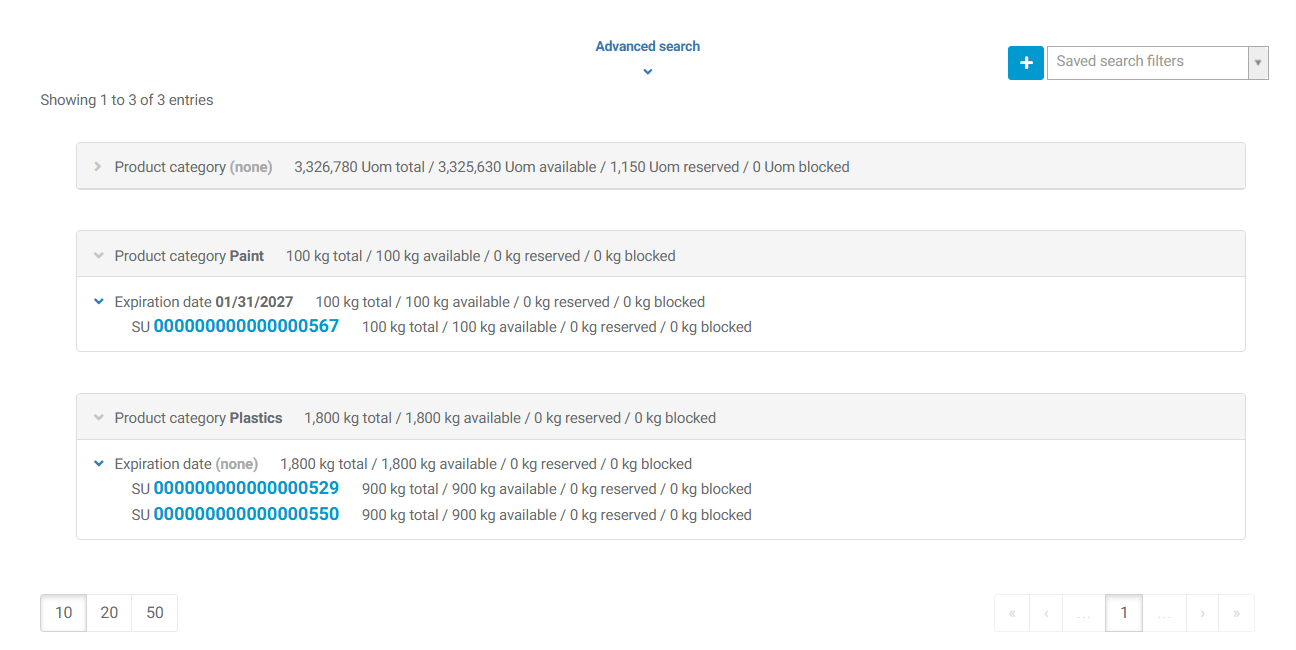
If you now expand the "expiration date" tab, all storage units with the product category and expiration date are listed.
Warnings
|
Warnmeldung |
Beschreibung |
|---|---|
|
Form validation failed. Please, check the data entered |
Some required fields are missing information. See the fields marked in red for more details. |
→ back to COGLAS processes
→ back to COGLAS menu