
General
The contract work invoice templates are needed to generate the corresponding invoice document; multiple documents can also be generated from the templates as long as the templates remain in the Active status.
Create Template
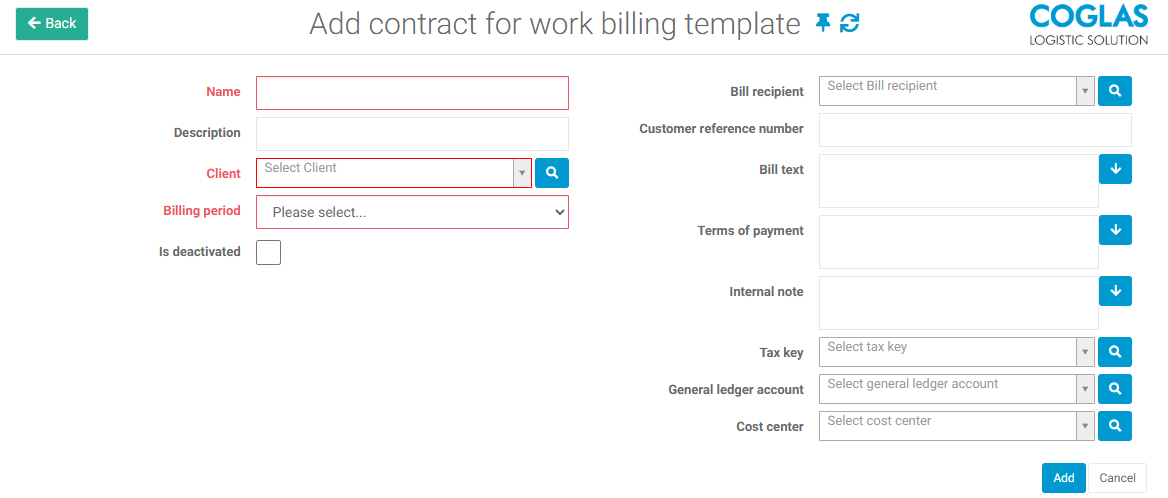
To create an invoice template, the menu under System -> Billing&Contract → Contract for werk billing Templates must be accessed. Here you will find an overview of all existing templates and can create more using the function button Add Contract for work billing template.
When adding a new template, the following fields can be filled:
|
Field |
Input |
Description |
|---|---|---|
|
Name
|
Free text |
Template name |
|
Description |
Free text |
Short description |
|
Client
|
Selection |
Associated client for whom invoices are created |
|
Billing period
|
Selection |
Selection of the billing period (daily - monthly) |
|
Day of the month in the billing period
|
Numeric value |
Determines the records Billing period from: Service period from: in the generated invoice. For example, if 20 is entered here, the invoice document will be generated with billing and service period from the 20th of the month. |
|
Bill recipient |
Selection |
Associated invoice recipient |
|
Customer reference number |
Free text |
Entry of an optional existing reference |
|
Bill text |
Free text |
Option to enter text on the invoice document |
|
Payment terms |
Free text |
|
|
Internal note |
Free text |
Does not appear on the invoice |
|
Tax key |
Selection |
Must be maintained under System->Billing&Contract->Tax keys e.g. 19% VAT. |
|
General ledger account |
Selection |
Must be maintained under System->Billing&Contract->General ledger accounts. |
|
Cost center |
Selection |
Must be maintained under System->Billing&Contract->Cost centers. |
|
Is deactivated |
Checkbox |
Sets the template active/inactive |
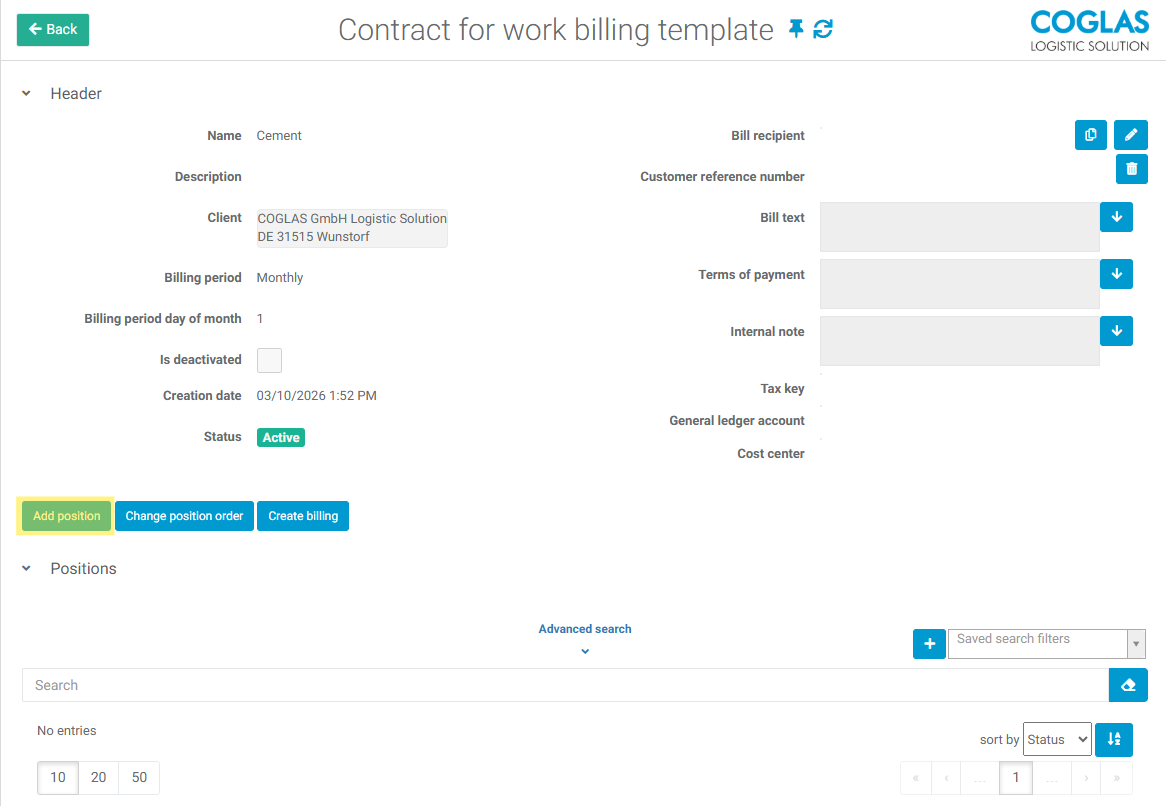
Once all data has been recorded, the template can be created with Add. After the template has been generated with all header data, position data must still be added with Add position, these are the previously created Contract for work rules [nicht online].
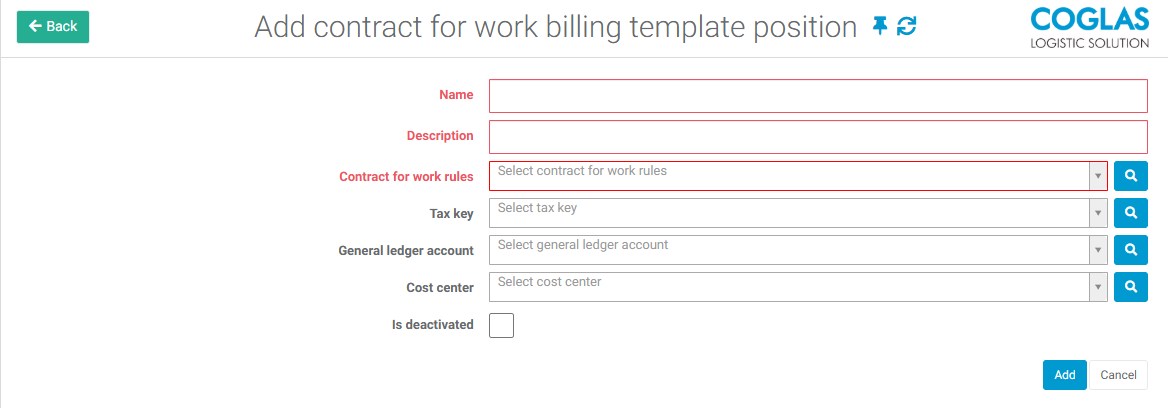
To create a new position, a name, description, and the associated contract rule must be entered.
Optionally, individual tax keys, accounts, and cost centers can be entered if they differ from those in the document header.
With the checkbox Disabled, the position can be deactivated or reactivated if necessary.
Once the template has captured all items, the item order can optionally be changed or the corresponding document can be generated via Create billing.
→ back to COGLAS processes
→ back to COGLAS menu