
General
Inventory counting involves physically counting and recording stock. The counting process will work through the lists in the order set for route optimization in the inventory order.
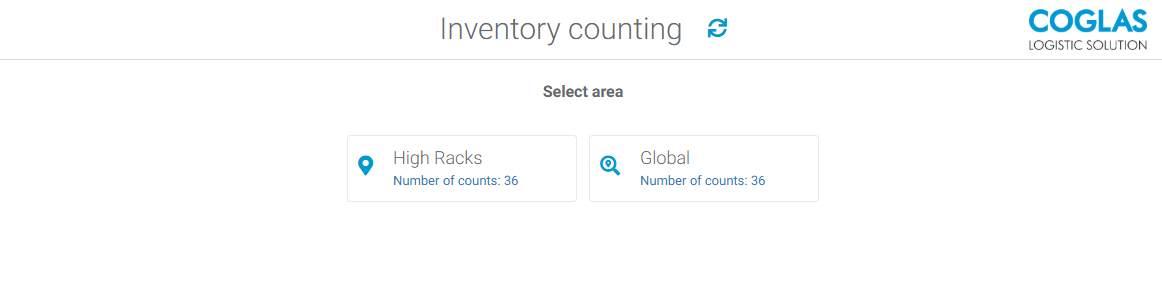
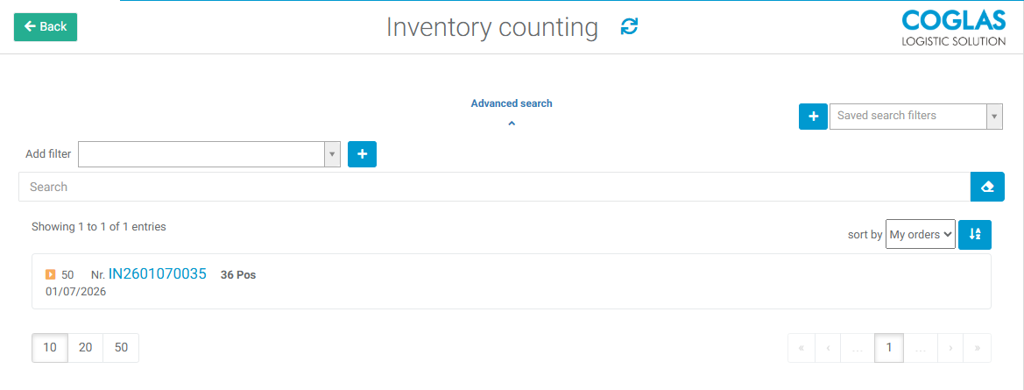
Once all the positions on the counting list have been completed, the screen will return to the inventory counting overview.
Counting with stock at the storage location
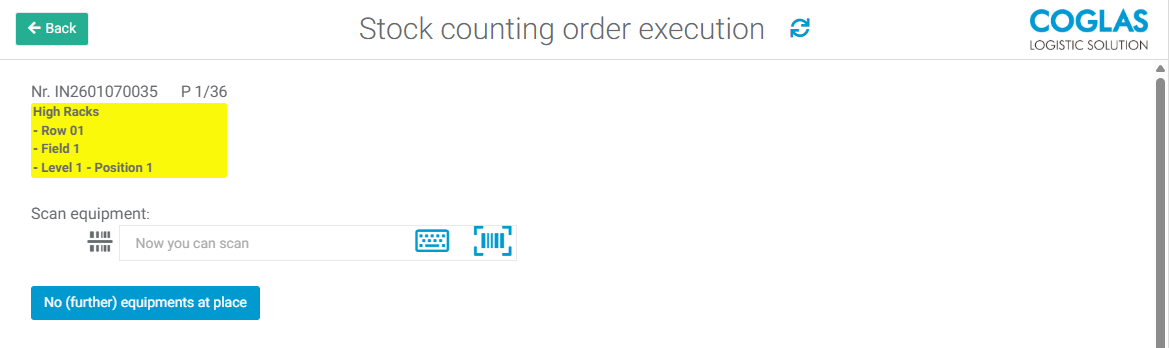
The yellow box indicates the target location where the stock needs to be counted. To ensure the process is carried out properly, it is necessary to scan the storage unit at the location. Once the storage unit has been scanned, its details will be displayed:
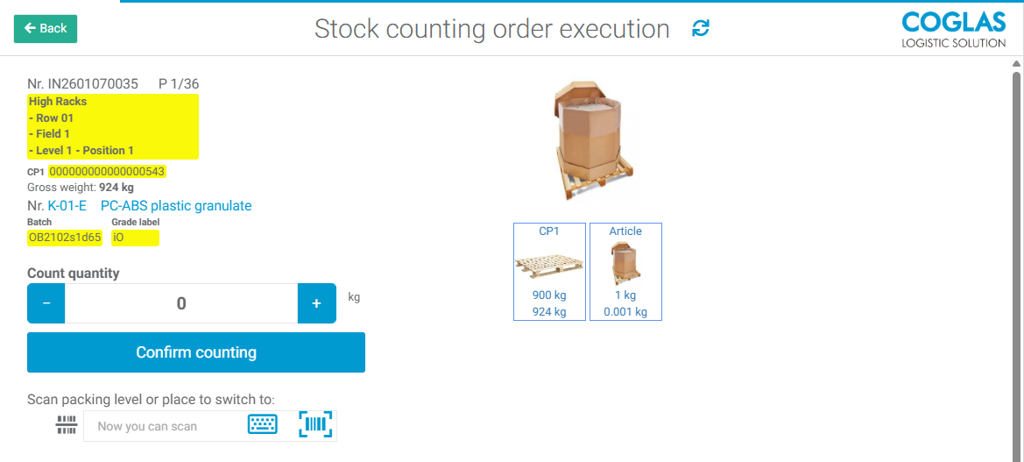
Afterwards, the count will be confirmed by entering the amount and clicking the 'Confirm counting' button. Packing units need to be maintained in the article master data for use.
If no more storage units are expected at this location, this needs to be confirmed, otherwise additional stock can be registered. Complete location jumps to the next position then.
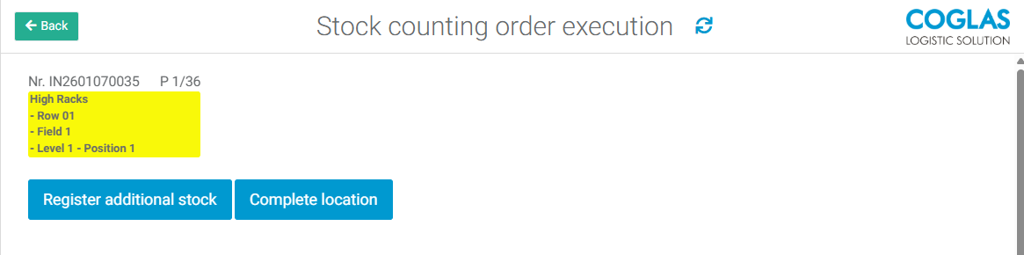
No stock on warehouse unit
When entering a count, the field is always empty at the start, so the employee performing the count must enter a quantity. If no quantity is entered, the error message “Enter quantity” appears. If there is no inventory, the quantity “0” can be entered, and the count can then be confirmed.
Serial numbers
If the counted location contains inventory items with serial numbers and the inventory has not changed, the serial numbers do not need to be captured. If the quantities have changed, the serial numbers must be captured.
Empty places
If there are any empty places, they just need to be confirmed.
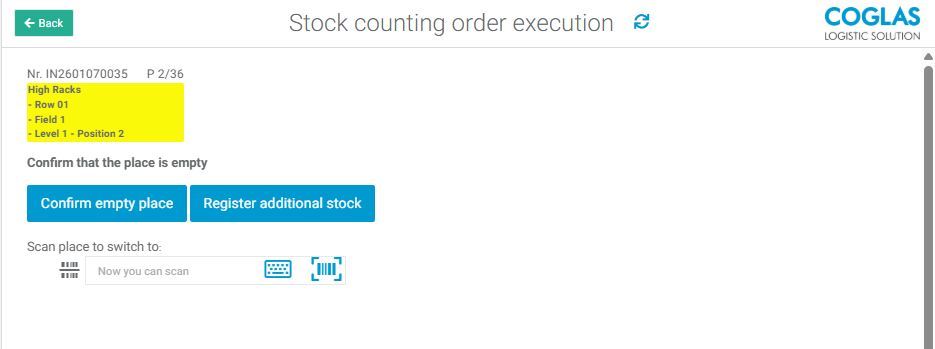
Register additional stock
If additional stock is found at the location that was not expected, this can be recorded by selecting the 'Register additional stock' button. COGLAS will then take you to a new input form where you can record all the necessary data.
Always required are:
-
Client
-
Article
-
Quantity
-
Equipment type
-
Barcode (storage unit)
Depending on the article, data such as the batch number or the best-before date may be required.
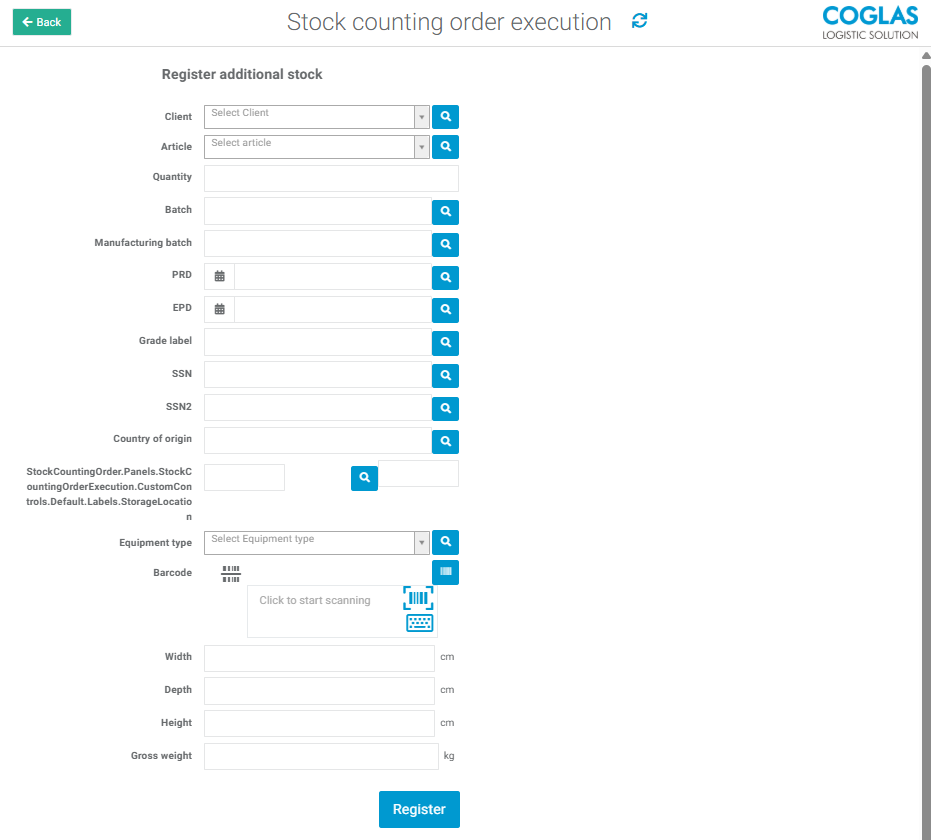
This step should only be carried out by experienced users. It will create a new storage unit containing the stock with the details entered in the form.
Empty storage unit
When entering the count, the field is always empty at the beginning, so that the counting employee must enter a quantity. If no counted quantity is entered, the error message "Enter quantity" appears. If there is no stock available, the quantity "0" can be entered and the count then confirmed.
→ back to COGLAS processes
→ back to COGLAS menu